Account and settings
Your name and picture, the way you sign in, how the app looks and reads, and which emails reach you, all on the Settings page.
Updated November 27, 2026For everyone
The Settings page is where you manage your own account. Every account has one, whatever the role. Open it from the account menu: click your picture or initials at the top right, then User Settings.
The page opens on a dark band with your name, then an index of cards on the left: Account, Preferences, Automation and Billing. Click an entry to jump to its card. On a phone, the index becomes a strip across the top.
Your account at a glance
The band across the top shows who is signed in: your name, your sign-in address, your role, your organization and the day you joined. Three tiles sit next to it: Available now, what you can spend right now (with Buy credits when you run low), Spent today and Spent this month. The figures are read when the page opens, so reload it to see a run you just finished. How credits work is in Balance and billing.
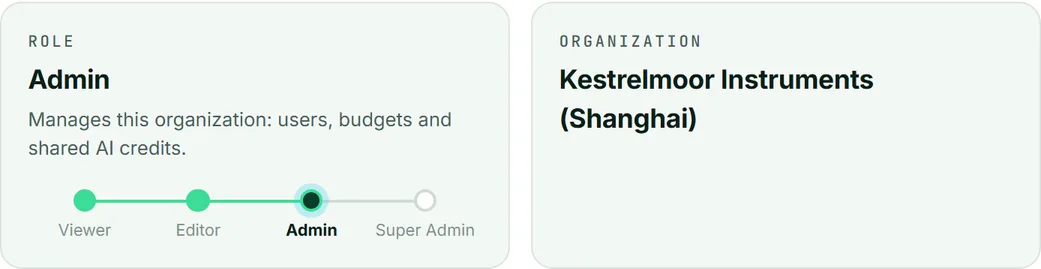
The Account overview card tells you your role, with a ladder showing where it sits (Viewer, Editor, Admin, Super Admin), and your organization. Nothing there can be edited. If your role is not what you expected, ask an administrator (see Roles and rights).
Set a name and the app stops calling you by your email address. It shows in the header, in every list of people and at the top of the emails we send you.
- Go to Your name.
- Type your First name and Last name. Neither can contain a web address or an email address.
- Click Save.
The Save button turns amber as soon as you type, a sign you have unsaved edits. Both fields are optional: leave them empty and the app uses your sign-in address. An administrator can also change your name from your page in the organization.
Profile picture
Your picture shows in the header and the account menu. Without one, you see your initials.
- Go to Profile picture.
- Drop an image on the box, or click Upload picture and pick one. A progress bar fills while it uploads.
Use a JPEG, PNG or WebP image. The page crops it to a square from the center and shrinks it, and what is left must weigh 2 MB or less. Remove goes back to your initials.
Sign-in and security
The Sign-in and security card has two tabs: Login email and Password. A third tab, Sign-in code, appears when your organization asks for a code by email at sign-in. Both changes check your current password first, so nobody who sits at your computer while you are away can take over the account.
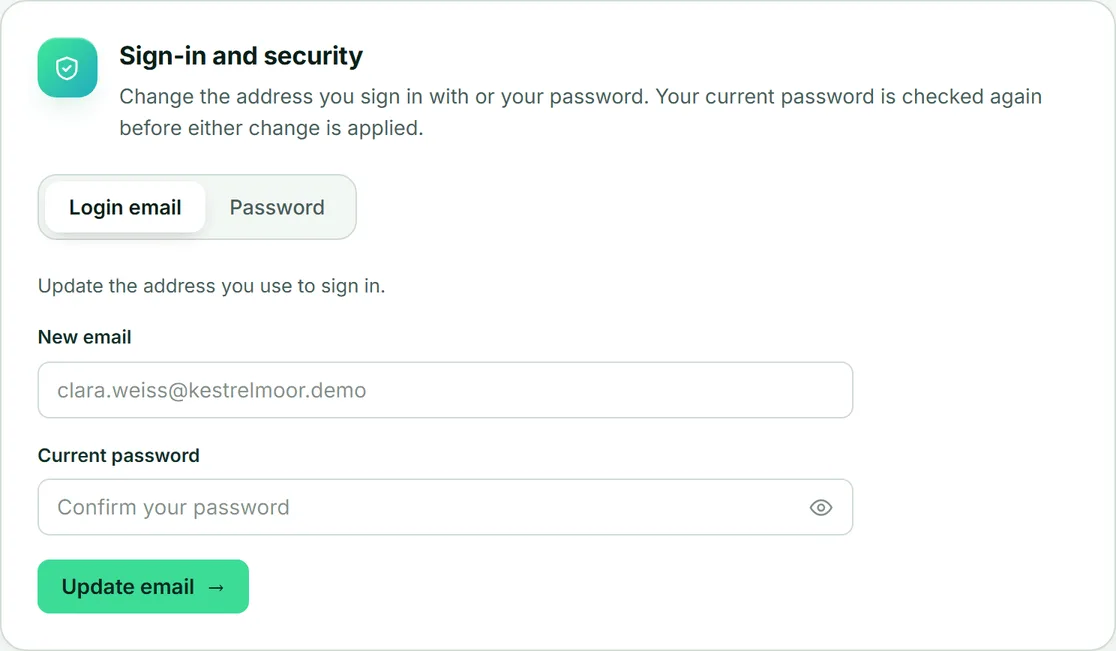
- Open Login email.
- Type the address in New email and your Current password.
- Click Update email.
The change applies right away. No confirmation goes to the new address, so check it for typos before you click: it is the address you must sign in with from then on, and the sign-in code goes to it too. Every other browser signed in to your account is signed out, and a notice goes to your previous address. A temporary mailbox cannot be used as a login address.
Change your password
- Open Password.
- Type your Current password, then the New password twice. It must be at least 8 characters.
- Click Update password.
A meter rates the new password from Too short to Strong. Only the length is enforced, but mixing cases, a number and a symbol makes it harder to guess. Every other browser signed in to your account is signed out, and a mail tells you the password was changed. Forgot the current one? Sign out and use Forgot password? on the sign-in page (see Getting started).
Trusted browsers
When your organization asks for a code, you can tell us to trust a browser for 30 days. The Sign-in code tab lists those browsers, with the day each was last used and the day its trust ends. The one you are using is marked (this browser). Click Stop trusting to drop one, or Stop trusting every browser to start over. Do it after signing in on a shared or borrowed computer.
Appearance
Appearance sets the theme:
| Option | What it does |
|---|---|
| System | Follows this device, and keeps following it when the device switches to dark at sunset. |
| Light | Always light. |
| Dark | Always dark. |
It takes effect the moment you click, with nothing to save. The sun or moon button in the header flips between light and dark in one click, and the account menu has the same switch. The theme belongs to the browser, not to your account, so you can read dark on a phone and light at a desk. Colors that carry meaning keep it in both modes: an amber Save still means unsaved edits.
Language
The Language card sets the language the screens speak to you: English, Français or 中文.
- Pick one in My language.
- Click Save. The page reloads in that language.
The choice is saved on your account, so it follows you to every browser and device, and the emails we send you are written in it too. The language row in the account menu changes it for the browser you are on. Only the interface changes: your own texts and files stay in the language they were written in. Your organization decides which languages are offered. If it offers English only, the card says so.
Date and time
These settings decide how every date and time reads to you: lists, logs, schedules and the emails we send you. They are saved on your account and follow you to every device.
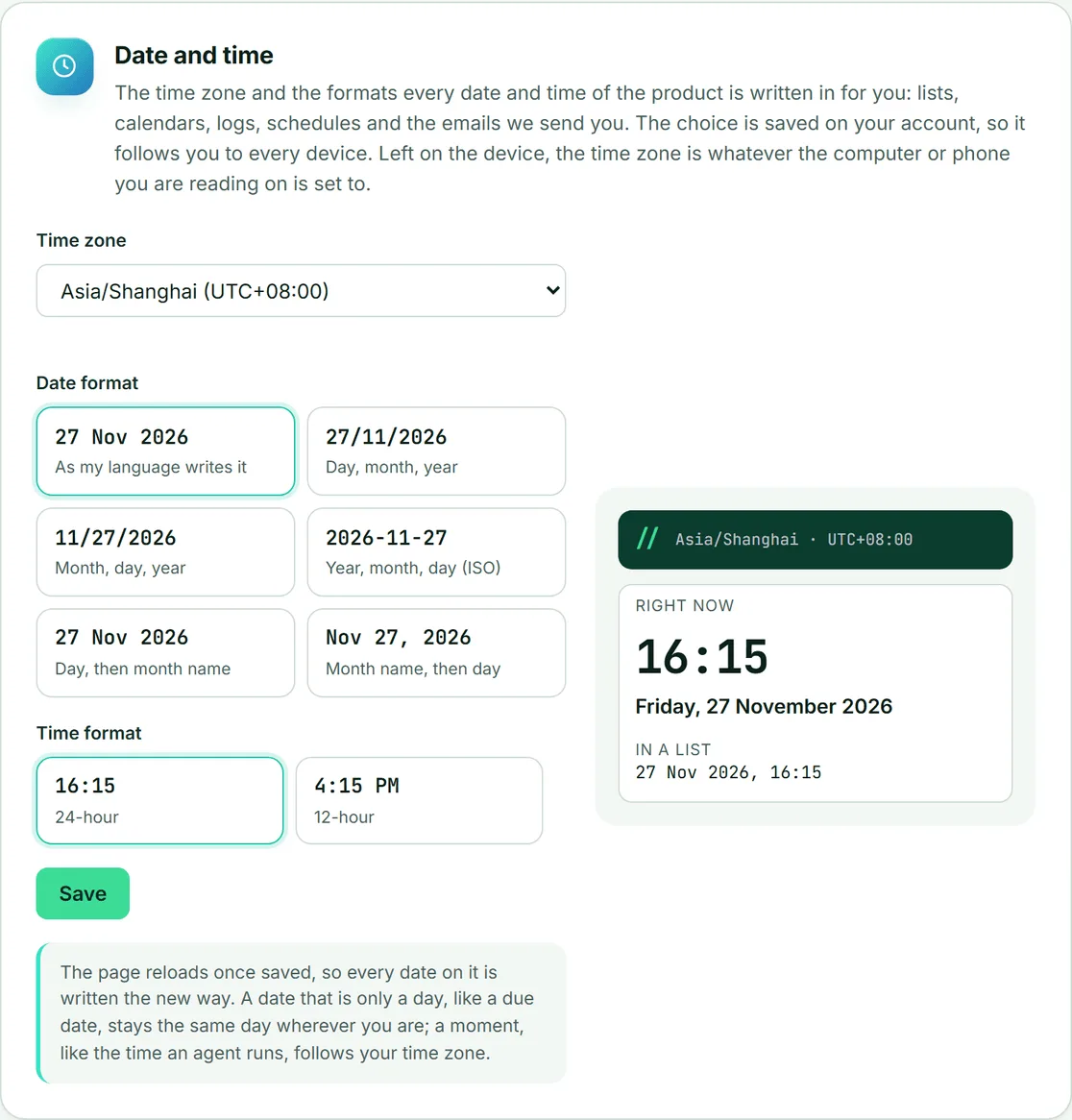
- Go to Date and time.
- Pick a Time zone, a Date format and a Time format.
- Check the preview on the right, which shows the time Right now and a date In a list.
- Click Save. The page reloads so every date is written the new way.
| Date format | Example |
|---|---|
| As my language writes it | The usual way for your language |
| Day, month, year | 26/11/2026 |
| Month, day, year | 11/26/2026 |
| Year, month, day (ISO) | 2026-11-26 |
| Day, then month name | 26 Nov 2026 |
| Month name, then day | Nov 26, 2026 |
For the time, choose 24-hour or 12-hour.
A moment, such as the time an agent ran, follows your time zone. A day with no time, such as a due date, stays the same day wherever you are. Changing your zone later moves nothing already scheduled: the moment stays the same, only its display changes. Emails use the zone you set, or the zone of the device you used last if you follow the device.
Home page
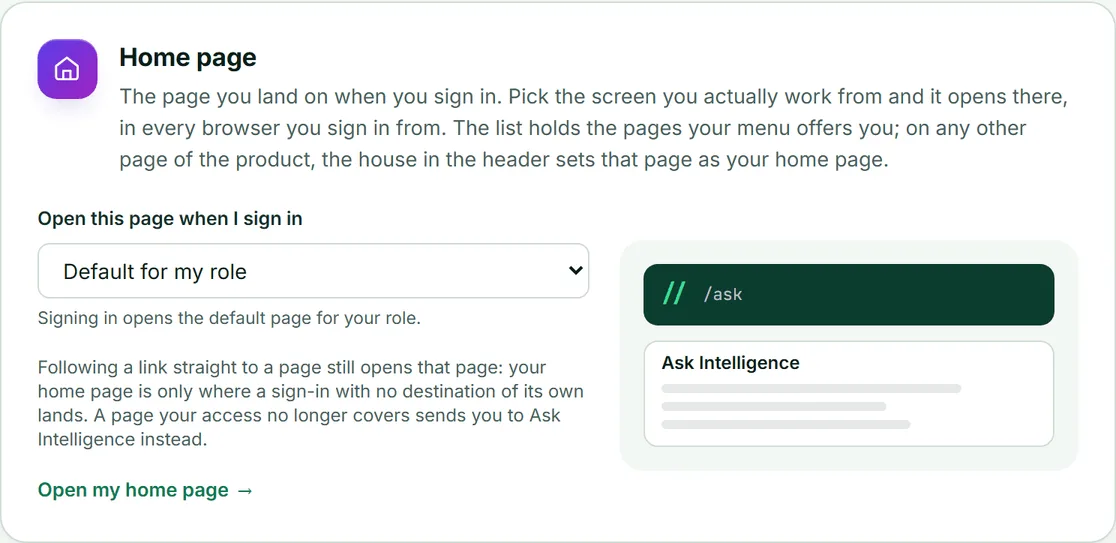
The Home page card sets where a sign-in lands. Pick a page in Open this page when I sign in. The list holds the pages of your own menu, from Ask Intelligence to Credits, User Settings, Log and Discovery. The choice is saved the moment you pick it, in every browser you sign in from. Default for my role goes back to the default, which opens Ask Intelligence.
You do not have to come back here. On the page you want, click the house in the header. A link to a specific page still opens that page: your home page only applies when a sign-in has nowhere else to go. If you lose access to your home page, you land on Ask Intelligence.
Every Monday, the digest sums up what changed in the app during the past week, in plain words and in your interface language. Nothing is sent on a week without changes.
In the Weekly digest card:
- Send me the weekly digest of what’s new switches the digest on or off.
- Email me when a new AI model is added switches the mail about new models on or off. It is one mail for all the models added in a day, never one per model.
- See what’s new opens the changelog (see What’s new and support).
- Manage all your emails opens the page that lists every optional email and lets you switch each one.
Every digest also carries an unsubscribe link at the bottom, which works without signing in.
Emails and notifications
Some emails you cannot stop, because your account depends on them: the invitation, the sign-in code, the password reset and the confirmation after a change of address or password. The others are optional. On the Your emails page, opened from Manage all your emails, each switch stops one kind of email, and each optional email also carries its own unsubscribe link. The kinds you may see:
| Kind | What it is |
|---|---|
| Weekly digest | Every Monday, what changed in the app. |
| New AI models | When a new model is added. |
| Cheaper AI models | When a model you can use becomes cheaper. |
| Agent reports | The reports your agents send after each run. |
| Access changes | Changes to what you can open in your organization. |
| Low credits | An alert when your organization’s credits run low. |
| Credit purchases | A notice when credits are bought for your organization. |
| Credit adjustments | A notice when our team adjusts your credits. |
Every email is written in your interface language, and its dates follow your date and time settings. Inside the app, long jobs report in the Activity panel instead of by email (see Log and Activity). The emails sent to you are also listed in your Log.
Tips
When you sign in, a small card in the corner brings a few tips. The Tips card in Settings holds the switch, Show me tips when I sign in, and a Show me a tip now button that opens a deck on the spot, whether the switch is on or off. Never see this again on a tip turns the same switch off, so this is where you turn tips back on. The choice belongs to your account, not to your browser. See Getting started.
Other cards on the page
- My models: which models appear in your lists. See Choosing a model.
- Voice input: the microphone on text boxes. See Voice input.
- Your connections opens your connections (see Connections), and Your agents opens your agents (see Agents).
- Invoices sets the name and address printed on invoices for credits you buy for your own account, and Activity log charts what you spent. See Balance and billing.
What it costs
Nothing on this page uses credits. Changing your name, picture, address, password, theme, language, date and time or home page is free.
Who can change what
| Setting | Who changes it |
|---|---|
| Name, picture, login email, password, trusted browsers, language, date and time, home page, digest, tips | You, from this page |
| Your name | Also an administrator, from your page in the organization |
| Role and what you can open | An administrator. See Roles and rights. |
Troubleshooting
| Message | What to do |
|---|---|
| Current password is incorrect. | Type the password you sign in with today. |
| New passwords do not match. | Type the same new password in both fields. |
| Temporary mailboxes cannot be used to sign in. | Use an address you keep, at work or personal. |
| Use a JPEG, PNG or WebP image. | Convert the picture to one of those formats. |
| Image is too large (2 MB max). | Use a smaller picture. |
| No Sign-in code tab | Your organization does not ask for a code by email, so there is nothing to manage. |
| Times look a few hours off | Check your Time zone. With Follow this device, a computer set to the wrong zone shows the wrong times. |
More messages are in Troubleshooting.