Playground
Chat directly with any model, attach your files, compare up to three models side by side and download what they make.
Updated November 26, 2026For everyone; Viewers can open the page but not send
The Playground is a direct chat with the AI models your organization allows. It is the second item in the left menu, at the address /playground. People use it to try a model before relying on it, to draft, to work through a PDF or a spreadsheet they bring, and to put two or three models side by side on the same question. The price shows under every answer.
What the Playground can read
A note at the top of the page says it plainly: “The Playground has no access to your data.” The model sees only the conversation on screen, the files you attach to it and your instructions for it, plus the skills that apply to the Playground. It reads none of your connected systems. To ask about those, use Ask Intelligence, which the note links to.
Start a conversation
- Pick a model in the Model list. Models are grouped by maker, and the list holds the ones your organization allows minus any you switched off in My models (see Choosing a model).
- Type in the box at the bottom. Enter sends, Shift+Enter starts a new line. Drag the grip above the box to make it taller. A message holds up to 12,000 characters.
- The answer appears as it is written, and ends with a line giving the model, the token count and the price.
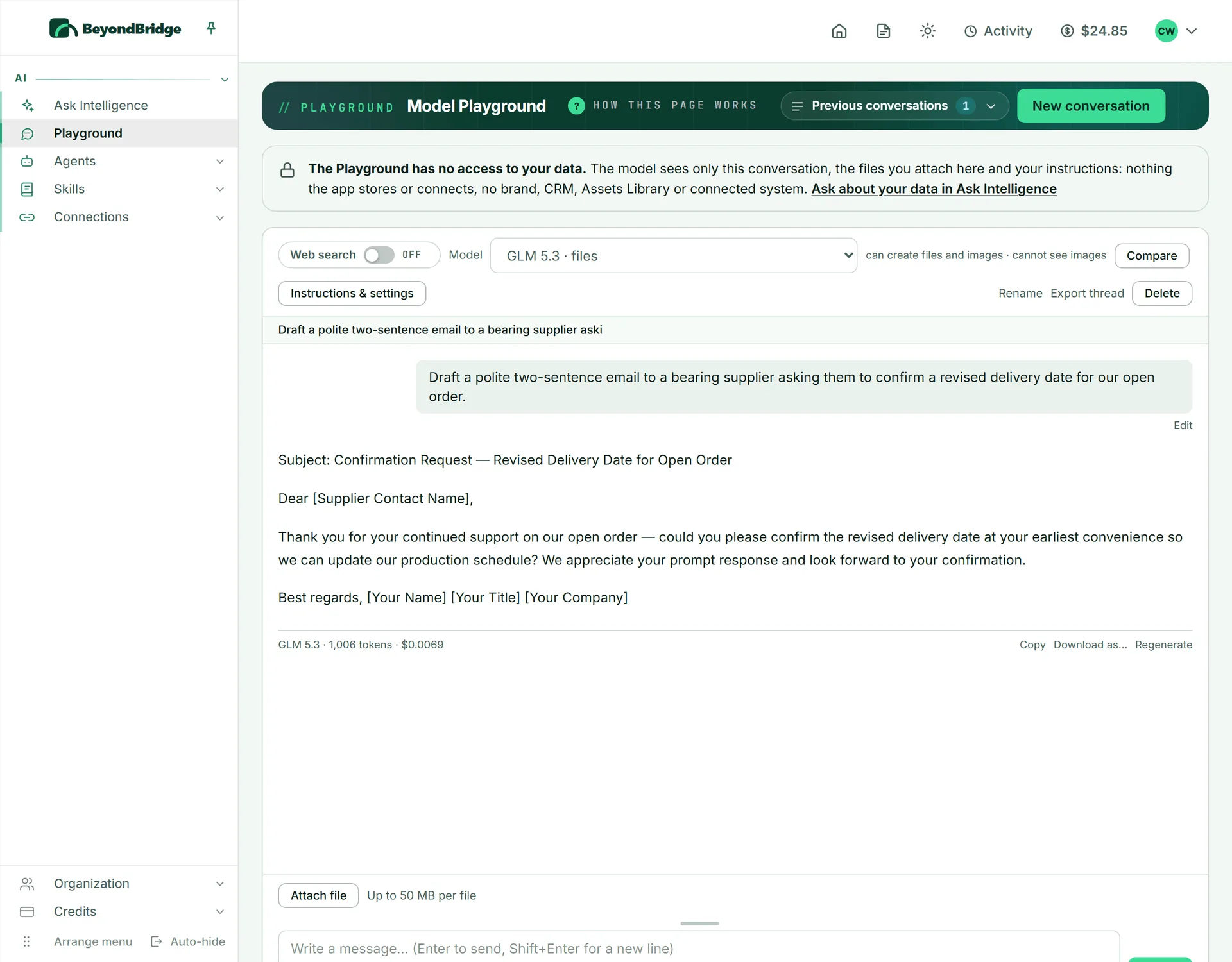
A model’s name may be followed by tags. files means it can create documents, spreadsheets, slides, code and images for you to download. vision means it can see the images you attach. A model with neither handles text only. The line next to the list repeats this for the model you picked.
Previous conversations
The Playground keeps every conversation. Click Previous conversations in the black band to open the list, with its search box. Each row shows the title, the model and when you last used it, and hovering shows Open, Rename and Delete. The list holds your 200 most recent conversations.
Conversations are private: nobody else in your organization can open them, administrators included, and there is no share button. To pass one on, use Export thread, in the bar above the conversation, which downloads it as a Markdown file with each answer’s price. Rename and Delete are in the same bar. At the foot of the list, a line shows what you spent in the Playground this month, and your allowance if one is set.
Attach files
Click Attach file under the conversation. The Playground takes:
- PDF, Word (.docx) and Excel (.xlsx) files;
- text and data files such as .txt, .md, .csv and .json;
- code files;
- PNG, JPEG, WebP and GIF images.
PowerPoint files and the older .doc and .xls formats are not accepted. Each file can weigh up to 50 MB, and a conversation holds up to 20 files. A bar fills while the file uploads and is read.
Documents are turned into text and sent to the model with every message, so a chip on each file shows roughly how many tokens it adds to each message. For a PDF only the text is sent, not its pictures: a scanned PDF with no text gives the model nothing to read. Images go only to models tagged vision. Click the x on a chip to remove a file.
Instructions and settings
Instructions & settings opens a panel above the conversation.
- Instructions for this conversation (system prompt) tells the model how to behave, for example “You are a terse financial analyst. Answer in French.” It holds up to 8,000 characters.
- Temperature goes from 0 to 2. Leave it empty for the model’s default. Claude models ignore it.

Web search
The Web search switch sits next to the model list. A conversation starts with it off and remembers your choice. Turn it on and the model searches the web before it answers. The line under the answer counts the searches, for example “2 web searches”, and the pages it used are listed under “Sources”. Each search is charged and added to the price of that answer.
Only models that run their own search can use it. For the others the switch is grayed out and hovering it says why. While it is on, the model list and the Compare list offer only models that can search. Searches per answer, up to appears while the switch is on: fewer searches means a lower price.
Compare models
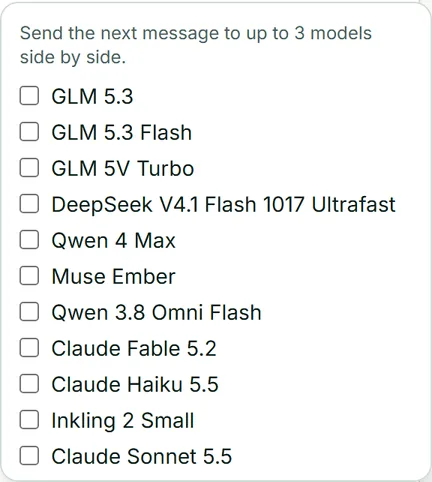
Click Compare and tick up to three models. The send button then reads, for example, Send to 3 models. Your next message goes to all of them and the answers appear side by side, each with its own price.
Tip: To choose a model for a job, send a few typical questions to a small model first. Bring in a larger one with Compare only where the small one falls short.
Work with an answer
Under each answer, Copy copies the text and Download as… saves it as Word (.docx), PDF, Markdown, Text or HTML, or saves its tables with Table as CSV or Tables as Excel. The last answer also has Regenerate, which asks the model again. Under your last message, Edit puts it back in the box: change it and send it again, and the old answer goes away.
Files the model makes
Models tagged files can hand you Word, Excel, CSV, PDF, PowerPoint, Markdown, text, JSON, HTML and code files as part of an answer, and images too, in square, wide, tall, 4:3 or 3:4 shapes. They show as cards under the answer, with a preview for images. Click a card to download it. These files live inside the conversation and are deleted with it. Stored files are billed as storage.
What it costs
Every answer is paid from your credits, and the line under it shows the price: the tokens, any web searches and any image. There is no fixed price per message. Four things drive it: the model you pick, how long the conversation already is (the model rereads it every time), the text of the files attached, and web searches. Compare sends one message to up to three models, so you pay for each of them.
Your organization may set a monthly Playground allowance per person. Once you reach it, the Playground refuses new messages until the next month. See Balance and billing for how credits work.
Who can use it
Creators and Admins can send messages. A Viewer can open the page but not send. See Roles and rights.
Troubleshooting
- “No model is available. Ask your administrator to enable models for the Playground.” Your organization offers no Playground models yet.
- “You have reached your monthly Playground allowance”, followed by the amount. Ask an administrator to raise it, or wait for the next month.
- “That message is too long. Please shorten it.” Cut it down, or attach the text as a file.
- “That file is too large (limit 50 MB).” Split or compress the file.
- “A conversation holds at most 20 files.” Remove a file or start a new conversation.
- “Unsupported file type. Use PDF, Word, Excel, text, code or an image.” Convert the file first, for example a .doc to .docx.
- A model fails. Its answer turns into a red error and your question stays in the conversation. In Compare, the other models carry on.