Getting started
From the invitation mail to your first question: open your account, sign in, take the quick tour and learn where everything sits.
Updated November 26, 2026For everyone
BeyondBridge is the workspace where you use every AI model and build agents from mainland China: Ask Intelligence, the Playground, Agents, Skills and your connections, with the credits that pay for them and the colleagues who share them. This article takes you from the first mail to a first question, then shows you where everything sits on the screen.
How an account is opened
Nobody can create an account on their own. The sign-in page has no sign-up form, and that is on purpose: we open each account ourselves.
- Ask for access. On the sign-in page, click Request access under the form, or use the contact form on the BeyondBridge website, and tell us about your company.
- We review your request and open the account for your organization.
- The person who opens it, or an administrator of your organization, sends you an invitation by email. It names who invited you, the organization you join and your role.
The invitation link works once and stays valid for a week. After that, ask the person who invited you to send a new one.
Accept the invitation
- Open the link in the mail. The page reads Join followed by your organization’s name.
- Type a password in Choose a password. It needs at least 8 characters, and the eye icon shows or hides what you type.
- Tick the box to accept the Terms of Service.
- Click Join and sign in. You are signed in at once.
If the link says the invitation was already used or has expired, you are not locked out. For a used one, go to the sign-in page and sign in with the invited address. For an expired one, ask for a new invitation.
Sign in
- Open the sign-in page. It opens in your browser’s language when that is French or Chinese, and in English otherwise. The language names under the form switch it.
- Type your email address in Login and your password in Password.
- Click Sign in.
A box that reads I’m not a robot ticks itself while the page loads. It is a quick automatic check, and there is nothing to click.
Where you land depends on how you got there. A link to a specific page opens that page once you are in. Otherwise you land on your home page, which is Ask Intelligence until you choose another one (see Account and settings).
The two-step code
Your organization can ask for a second step: a 6-digit code mailed to your login address. When it does, the form changes to One more step.
- Open the mail and read the code. It carries only the code, never a link or a button.
- Type it in Sign-in code. Six digits submit the form on their own, or click Confirm and sign in.
- Leave Trust this browser for 30 days, so it only asks for my password. ticked on a computer that is yours. Untick it on a shared one.
A code lasts 10 minutes and works once. If the mail does not come, click Send another code: it sends a fresh one and voids the old one. Sign in as someone else brings the password form back.
If you are never asked for a code, your organization has it switched off. Administrators decide it for everyone in Your organization.
Forgot your password
- On the sign-in page, click Forgot password?.
- Type your login email and click Send reset link.
- Open the mail and click its link. It works once and stays valid for 24 hours.
- Type a New password of at least 8 characters, repeat it in Confirm password and click Set new password.
Setting a new password this way signs you out everywhere else. To change a password you still know, use Settings instead (see Account and settings). If something goes wrong at the sign-in, Troubleshooting lists the messages and what to do.
The connection check
Once you are in, BeyondBridge checks the connections you rely on (your Outlook mailbox and the systems your organization connected) in the background. A notification in the bottom right corner tells you that every connection works, or lists the ones that need attention. It never holds you up. See Connections.
Your first sign-in: Discovery
Your very first sign-in opens on the Discovery page, whatever page you were heading to. It greets you by name and shows what you can do, module by module. If you came through a link to a page, Continue to your page takes you there when you are ready.
The page has three parts after the welcome:
- Start here: three first steps, each with a button to the page where it happens. Ask your first question, connect your mailbox, add credits.
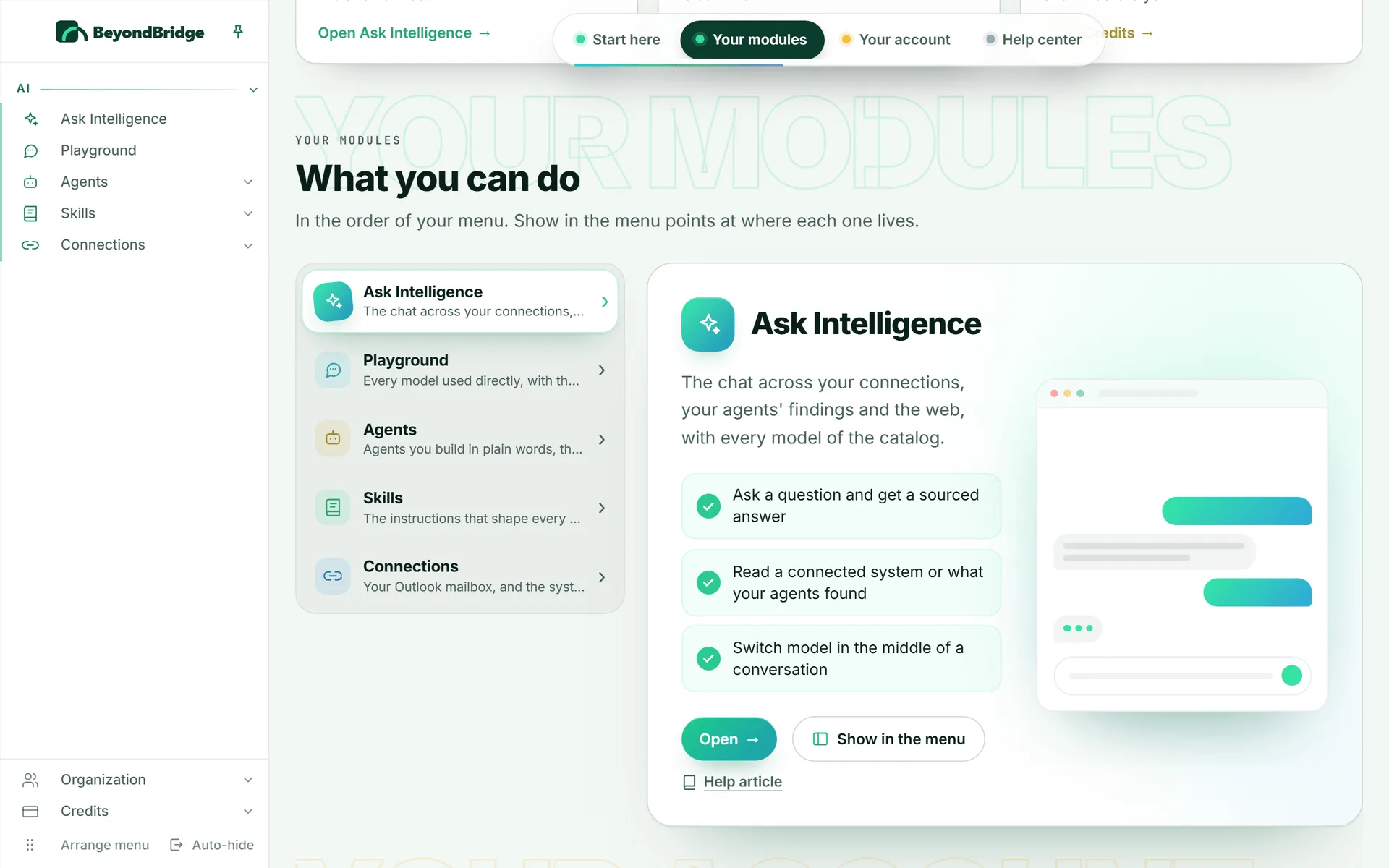
- Your modules: every module of your menu, in the menu’s order. Pick one to read what it does and three things you do with it, then use Open, Show in the menu or Help article.
- Your account: your credits and the organization.
The quick tour
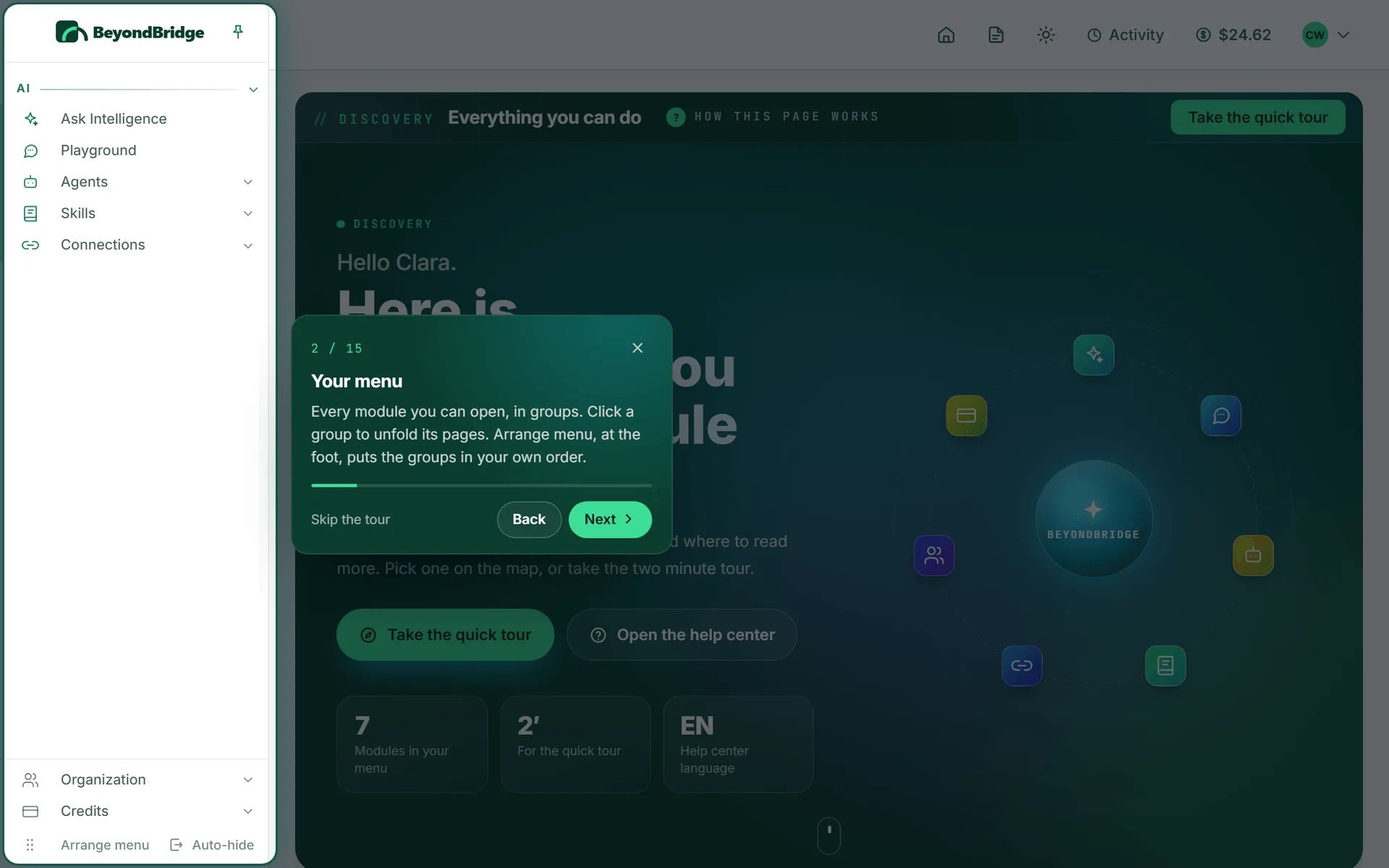
Click Take the quick tour. A spotlight walks across the real screen, one part at a time, with a sentence for each: the menu and its modules, then the home icon, Activity, your credits, your account menu and the help center link. Next and Back move through it, and so do the arrow keys. Skip the tour, the X or Escape stops it. The tour only points. It never clicks or changes anything, and it takes about two minutes.
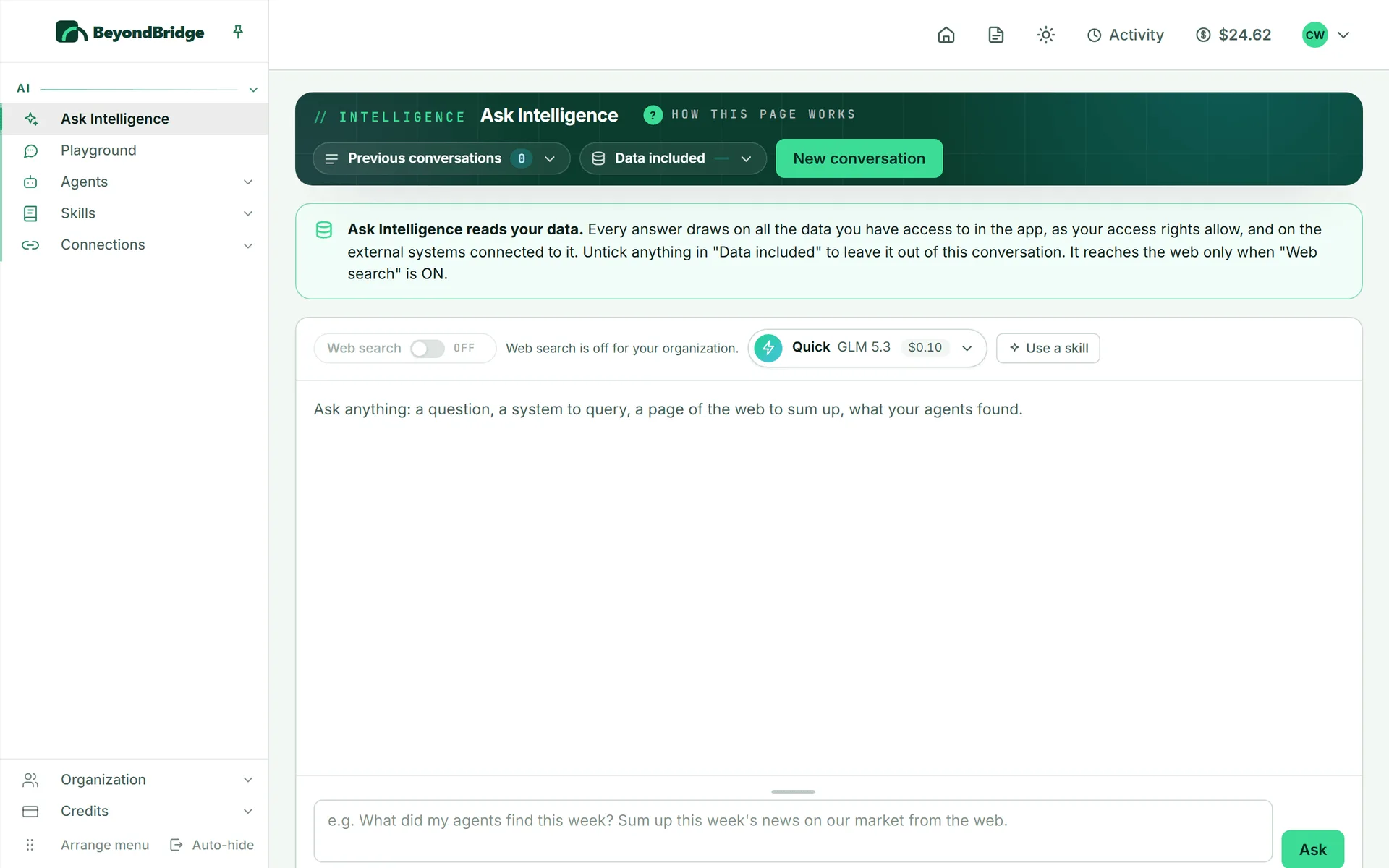
The menu on the left holds your modules under one heading, AI:
| Entry | What it opens |
|---|---|
| Ask Intelligence | The chat across your files, your connections and the web. See Ask Intelligence. |
| Playground | Every model used directly, with the price shown before each run. See Playground. |
| Agents | Agents that read the web, the news and your connections on a schedule. See Agents. |
| Skills | The instructions that shape every answer. See Skills. |
| Connections | Your mailbox and the systems your organization connects. See Connections. |
At the foot of the menu, outside the heading, sit Organization and Credits. Organization holds your colleagues, their roles and the organization’s settings (see Your organization and Roles and rights). Credits holds your balance, your invoices and your usage (see Balance and billing). Some entries under a group, such as Organization agents or Organization connections, are for administrators only, so a colleague’s menu can differ from yours.
Click the arrow beside a group to open its pages. Click the AI heading to fold the group away.
Two buttons sit at the very foot of the menu.
- Arrange menu lets you put the entries in your own order. Click it, drag an entry to its new place or use its up and down arrows, then click Done. Each move is saved on your account right away, so the menu keeps your order in every browser. Reset to the default order puts everything back.
- Auto-hide shrinks the menu to a narrow rail of icons that slides open when your mouse rests on it. The button then reads Keep pinned. The pin icon at the top of the menu does the same, and so does the backslash key (
\) from any page, as long as you are not typing in a field.
On a phone or a narrow window, the menu becomes a drawer. The menu button at the left of the header opens it.
The header
Across the top, from left to right:
- The house sets the page you are on as your home page, the one you land on after signing in. The icon fills in to show it. Click it again to go back to the default.
- The notes button opens your Scratchpad, a drawer for your own notes. Alt+N does the same. See Scratchpad.
- The sun or moon switches between light and dark in one click.
- Activity tracks what is running and what just ended. See Log and Activity.
- Buy credits appears in place of your balance when your credits run out. Otherwise the amount you can spend right now shows there, in US dollars. Click it to open Credits.
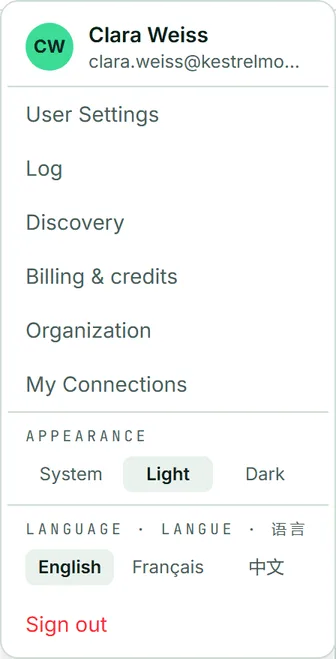
- Your picture or initials opens the account menu.
The account menu lists User Settings, Log, Discovery, Billing & credits, Organization and My Connections, then a switch for the theme and, when your organization offers more than one language, a row to change the language. Sign out is at the bottom. It ends the session in this browser only.
The foot of every page carries a few links, each opening in a new tab:
- Help center: the articles you are reading now.
- Report a bug and Contact us: tell us what broke, or write to us.
- beyondbridge.ai: the website.
- What’s new: every change to the app, week by week. See What’s new and support.
- Model benchmarks: public benchmarks of the models, to compare them.
- Terms of Service and Privacy Policy.
Tips after you sign in
Each time you sign in, the first page you open brings a small card in the lower right corner with a few tips: how to do something, what you may not know yet, the latest features. Each tip has a screenshot and a short text.
- The arrows, or the left and right arrow keys, move between tips.
- Show me opens the page a tip is about. The card stays open so you can follow it on the real screen.
- The X closes the card.
- Never see this again switches tips off.
Settings holds the switch to turn tips back on and a Show me a tip now button (see Account and settings). When the first page you open is Discovery, the tips wait for the next page.
Interface languages
BeyondBridge speaks English, French and Chinese. Pick one in the row at the foot of the sign-in page, in the account menu, or in Settings, where the choice is saved on your account. Only the interface changes: your own texts and files stay in the language they were written in. The help center itself is in English.
What it costs
Nothing on this page uses credits. Signing in, Discovery, the tour and the tips are free.