Your organization
Administrators invite colleagues, set each person's role and daily limit on the shared credits, and set the logo, languages and sign-in security.
Updated November 26, 2026For everyone can read the team; administrators manage it
Your organization is the group of people who share one pool of credits. Open Organization in the left menu: its first entry, Organization, is the team page, titled “Your organization”. Administrators also get Organization settings under it.
Everyone in the organization can read the team page and see who is in it. Only administrators change anything.
The team page
The top card reads “4 people, one pool of credits” (the number follows your team). It adds: “Everything the organization creates is paid from its credits first, then from each person’s own.” Under Organization name an administrator can rename the organization with Save the name. Next to it, Organization credits shows the shared balance, with a Buy credits button. See Balance and billing.
Members
The Members card lists everyone, one line each, with the address underneath and, when someone has not yet signed in, “Never signed in” (otherwise the date they were last seen).
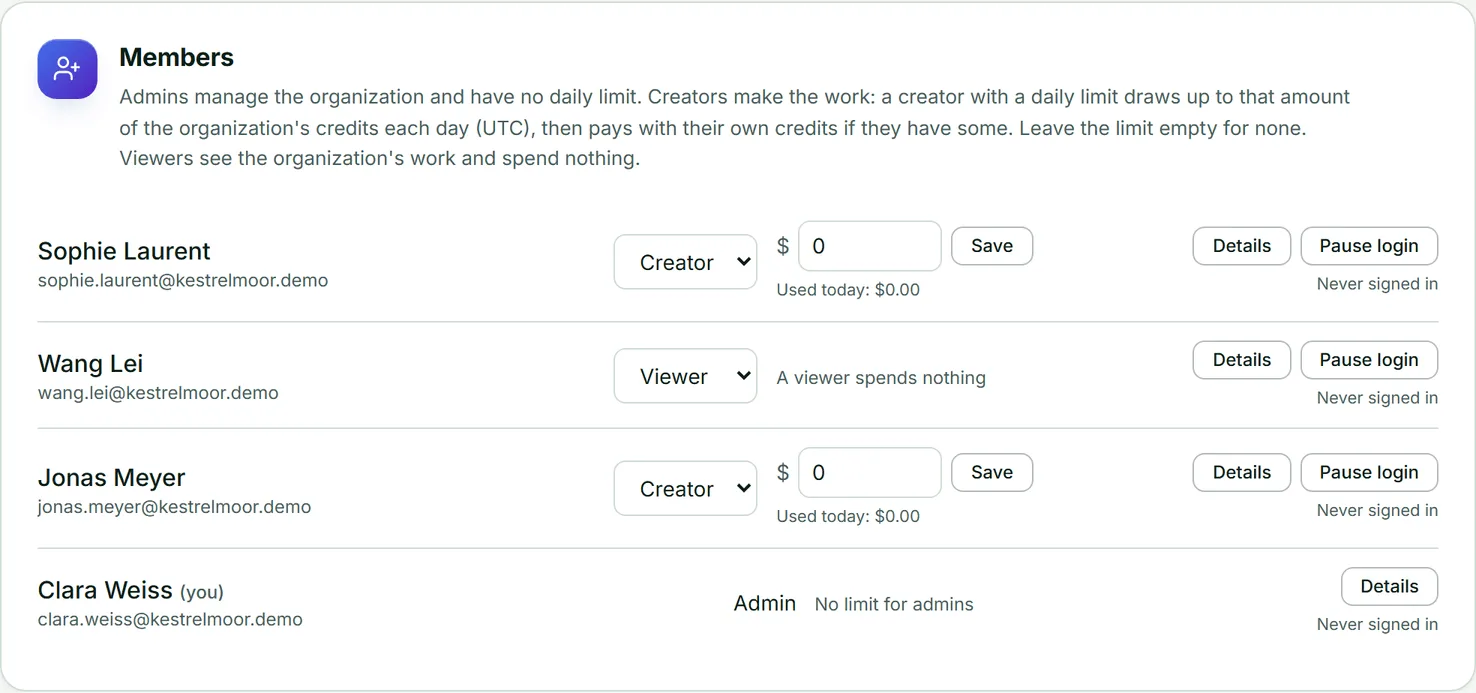
| Role | What it means |
|---|---|
| Admin | Runs the organization. Invites people, sets limits, pauses logins. Has no daily limit |
| Creator | Makes the work. Draws on the organization’s credits up to a daily limit, then pays with their own credits if they have some |
| Viewer | Sees the organization’s work and spends nothing |
The page confirms each change, for example “They are now a viewer: they see the organization’s work and spend nothing.” You cannot change your own role. For what each role may open, see Roles and rights.
Daily limits on the shared credits
A creator’s line has a box with a dollar sign. Type the most they may draw from the organization’s credits each day and click Save. The day runs on UTC. Leave it empty for no limit, and type 0 for nothing from the shared pool. Under it, “Used today” shows what they have already taken.
Administrators show “No limit for admins” and viewers show “A viewer spends nothing”. Credits a person bought for themselves are their own and are never capped.
Details and Pause login
Details opens the person’s own page, where an administrator sets their modules, their rights and more. See Roles and rights.
Pause login locks a person out. The page asks “Pause this login? They cannot sign in until you let them back in. Nothing they made is lost.” A paused person shows a Paused tag, and the button becomes Let back in. Your own line has no pause button, so nobody can lock themselves out. A user is never deleted.
Invite someone
The Invite someone card sends a link by email: “They receive an email with a link to choose their password and join the organization.”

BeyondBridge has no self-service sign-up, so an invitation is how someone joins your organization. Pending invitations appear under Waiting for an answer, with the role and either “Link valid until” a date or “The link has expired”. Click Cancel the invitation and its link stops working. To send a new link, cancel the old one and invite the address again.
Invoices and sign-in
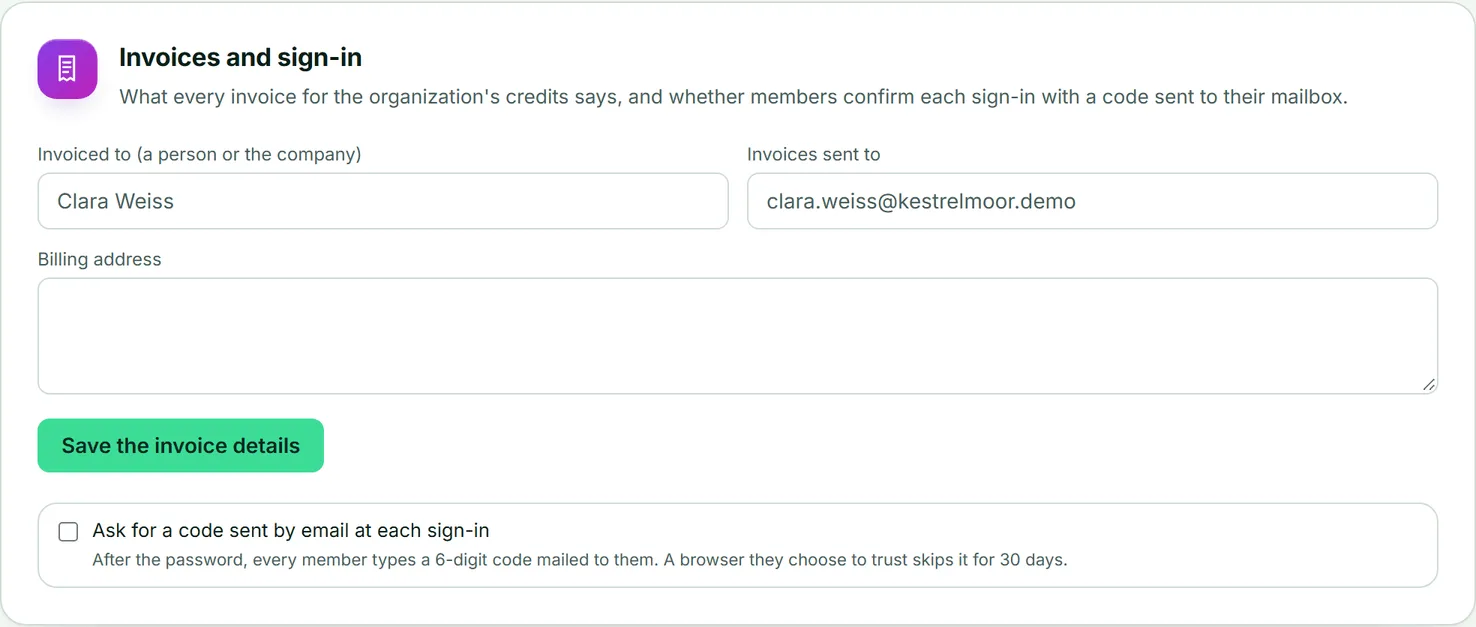
The Invoices and sign-in card holds what every invoice for the organization’s credits says: Invoiced to (a person or the company), Invoices sent to and Billing address. Click Save the invoice details and the next invoice carries them.
Languages
The Languages card chooses which interface languages the organization can switch to. English is always on. Français and 中文 can be offered to every member, in the menu under their picture and in their settings. It changes the interface only: what the organization writes and makes stays in the language it was written in. Members see the change on their next page.
Organization settings
Open Organization, then Organization settings (administrators only).
Logo
The Logo card sets the image every member sees at the top of the left menu, in place of the organization’s initials. Click Choose image. It takes PNG, JPEG or WebP up to 2 MB, and a square image reads best.
Interface languages
The Interface languages card on this page is the same choice as the Languages card on the team page. Switch Français or 中文 on or off and click Save languages.
Sign-in security
The Sign-in security card asks everyone for a second proof at sign-in: a 6-digit code sent to their login address, on top of their password. Switch Code by email at sign-in on or off and click Save security.
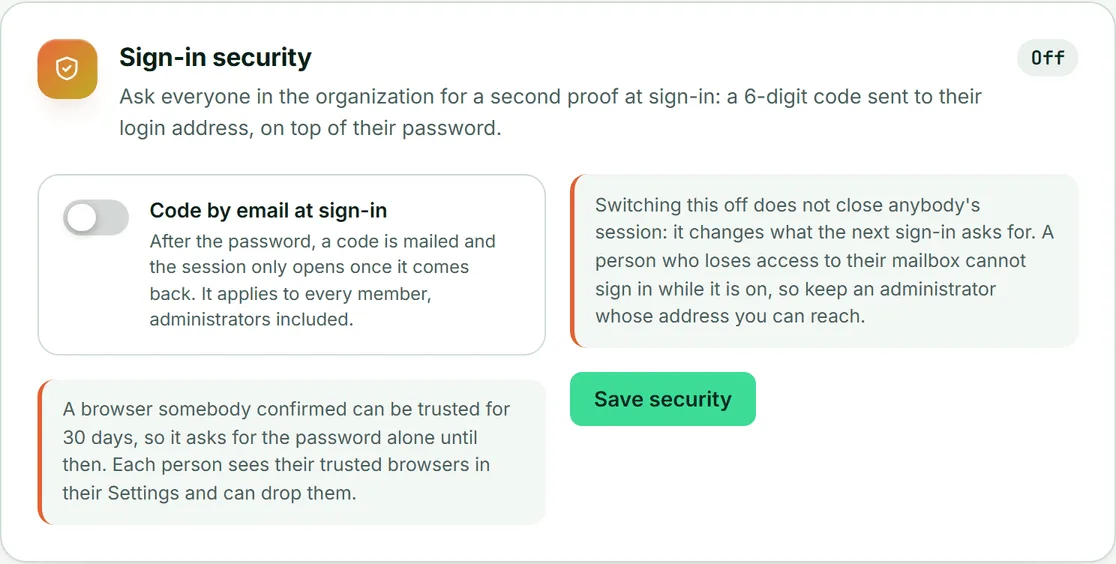
Important: While it is on, a person who loses access to their mailbox cannot sign in. Keep an administrator whose address you can reach.
What it costs
Managing people, invitations and settings costs nothing. The credit figures on these pages are what people already drew, and each run shows its price before it starts.