Ask Intelligence
Ask a question in plain words, pick the model and the skills, and read the answer with what it used and what it cost.
Updated November 27, 2026For everyone; Viewers can open the page but not ask
Ask Intelligence is the chat of BeyondBridge, and the page the app opens on by default. You type a question in plain words, pick the model that answers, and read the answer with the price under it. It is the first item in the left menu, at the address /ask.
Use it to think through a problem, draft or summarize, ask what your agents found, or query the systems your organization connected. Its sibling, the Playground, is a plainer chat with the models and a place for your own files.
Open the page
The black band at the top holds three controls: Previous conversations, Data included and New conversation. Under it, a short notice says what the page reads. The conversation fills the rest, with its toolbar on top (Web search, the model button and Use a skill) and the message box at the bottom.
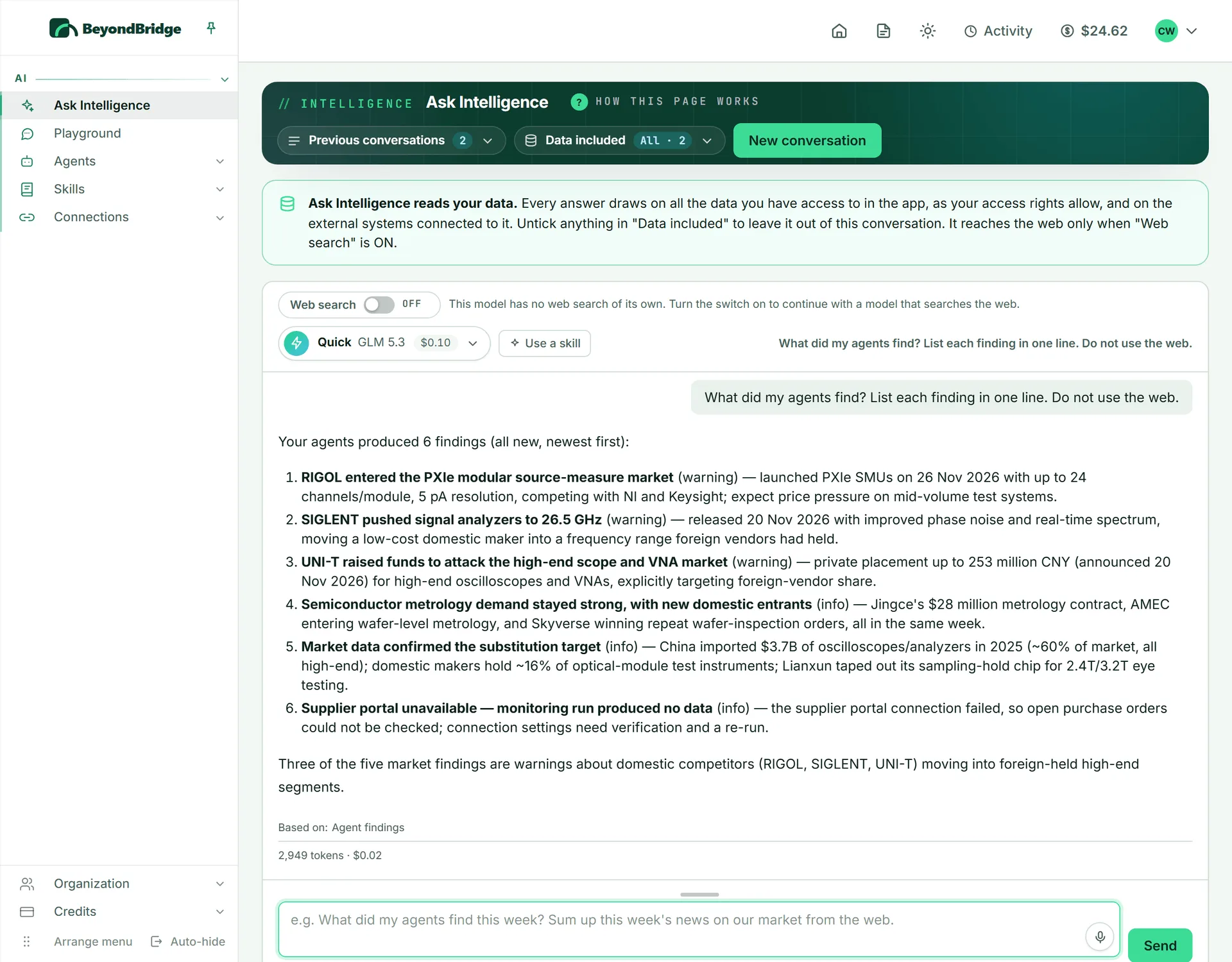
- Type your question in the box at the bottom. It holds up to 1,000 characters.
- Press Enter or click Ask. Press Shift+Enter for a new line.
- A status line shows while the answer is written. Then it appears in the thread.
- Type a follow-up in the same box. The button now reads Send, and the follow-up keeps the context of the thread.
Ask answers in the language you write in. To make the box taller, drag the grip above it upward; double-click the grip to put it back.
Under each answer, small print tells you where it came from:
| Line | What it tells you |
|---|---|
| Based on: | The sources the answer read, such as Connected systems or Playground. It is missing when the answer needs none. |
| From the web: | Only when web search was on. The sites it used, as links. |
| Cost line | The number of web searches, if any, the tokens used and the price of the answer. |
Ask says so when it cannot answer from what it can read. It does not invent a figure about your own company.
Previous conversations
Every conversation is saved as soon as its first answer comes back, with no Save button. Close the tab today, come back tomorrow, and the thread is there. Conversations are private: nobody else in your organization sees them, administrators included.
- Click Previous conversations. The number next to it counts your conversations.
- Type in Search conversations… to filter the list by title.
- Click a conversation to open it.
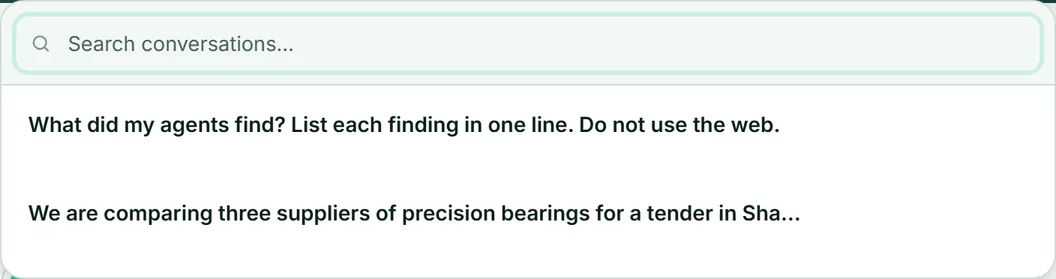
Reopening a conversation costs nothing. It comes back as you left it, with its answers, its prices and its settings. Only a new question is charged. The address of the page carries the conversation, for example /ask#chat= followed by a code: bookmark it, or reload, and you land on the same one. The link opens for you alone.
A conversation keeps its last 40 questions and answers, and Ask reads back the most recent 10 of them with every follow-up. On a very long thread, a New conversation that starts with a short recap works better and costs less. New conversation leaves the one on screen in the list.
Data included
Ask reads what you are allowed to see, and nothing more. Data included lists it, all ticked by default. The number on the button says how much is on, for example “All · 2”, or “1/2” when you left something out.
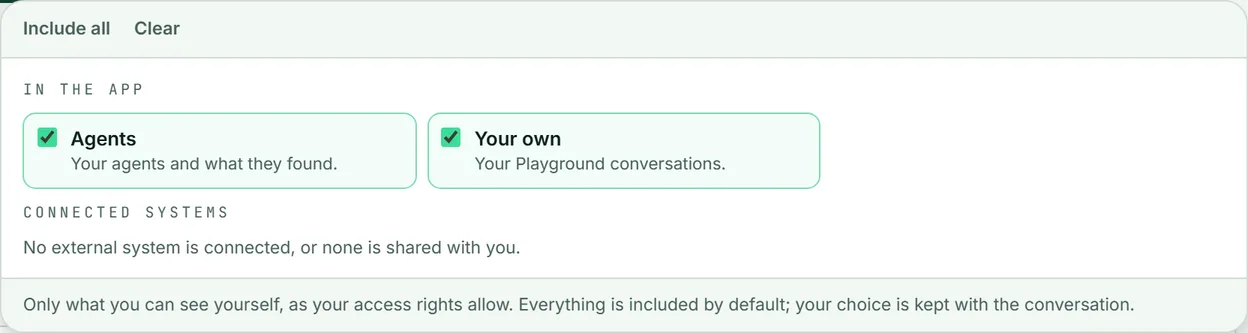
- In the app: Agents, your agents and what they found, so you can ask “What did my agents find this week?”, and Your own, your Playground conversations.
- Connected systems: the systems your organization connected and you may read, and the accounts you connected yourself, such as your Outlook mailbox. See Connections.
To leave something out of a conversation, click Data included, untick it, then click outside the list or press Esc. Clear unticks everything and Include all ticks it again. The choice is saved with the conversation, and a New conversation starts with everything included. If you ask about something you left out, Ask names it and tells you to tick it and ask again.
Nothing here opens more than your rights allow. A connected system you have not been granted stays out of your list.
Web search
The Web search switch is in the toolbar. It reads OFF when the page opens. Turn it ON and the answer may use the web as well as your data.
- A From the web: line under the answer lists the sites used, and the cost line counts the searches, for example “2 web searches”.
- Searches per answer, up to appears next to the switch while it is on. Fewer searches means a lower price.
- Only models that can search the web on their own work with it. While the switch is on, the model button lists only those models. If your model cannot search, the note next to the switch says so, and turning the switch on moves you to one that can.
- Each search is charged on top of the tokens. Switch it off when the question is only about your own material.
The switch is saved with the conversation.
Web search is a setting of your organization. When it is off, the switch is grayed out and the note reads “Web search is off for your organization.” To have it turned on, write to the BeyondBridge team through Contact us in the footer.
Pick a model
The model button in the toolbar shows the choice in use, its model and what one question usually costs, for example Quick, the model’s name and a price. Click it to pick Quick, Balanced or Best, or any model from All models. Pick before you ask: the button remembers your choice in this browser. The exact price shows under each answer. The whole picker is described in Choosing a model.
Use a skill
Use a skill opens the skills picker, under Skills to apply. It lists every switched-on skill of your organization and every skill of your own.
- Click Use a skill.
- Tick one or more skills.
- Ask your question. The answer follows the skills you picked.
Nothing is applied unless you pick it, and the choice is not saved with the conversation. A skill adds its instructions to the question, so it adds a few tokens to the price. Manage skills opens your skills in a new tab. See Skills.
Files
Ask has no attach button and does not make files. To work on a document, open the Playground, where Attach file takes PDF, Word, Excel, text, code and image files, and its models can hand you files to download.
What it costs
Every answer is a paid call. There is no quote before you ask; the price shows under the answer once it is written. It covers the tokens the model read and wrote, including what Ask pulled from your connected systems, and each web search when the switch was on. The cost comes out of your organization’s credits, shows on your balance in the header, and lands in your usage log. See Balance and billing and Log and activity.
If your balance runs out, or you reach your daily limit, Ask stops before it runs and tells you why. A follow-up costs a little more than the same question asked fresh, since the earlier turns go back to the model with it.
Who can use it
Creators and Admins can ask, follow up, rename and delete their own conversations. A Viewer can open the page but not ask: a question sent anyway comes back with “Your role (viewer) is read-only.” See Roles and rights.
Troubleshooting
The question came back into the box with a red message. Something went wrong before the answer was written. Your question is put back so you can edit it and send it again. Nothing is added to the thread.
“No answer came back. Please try rephrasing.” The model returned an empty answer. The attempt was still charged, and the same line gives its cost. Ask the question another way.
The Web search switch is gray. Your organization has web search off, or the model you picked cannot search. The note next to the switch says which.
“Conversation not found.” The conversation was deleted, or the link is someone else’s. Open Previous conversations and pick one from the list.
A connected system answers with an error. The connection may have expired or been removed. See Connections and Troubleshooting.