Balance and billing
Which balance pays, how to buy credits, how to refill them by themselves, and where to find your invoices and every paid action.
Updated November 27, 2026For everyone; administrators buy for the organization and set daily limits
BeyondBridge runs on prepaid credits. You buy credits, and every paid action takes its price off your balance. The pages that handle all of this sit in the Credits group of the left menu: Buy credits, Invoices and Usage. The amount next to the coin icon in the header is what you can spend right now, and Billing & credits in the menu under your picture opens the same place.
One credit is one US dollar, and credits never expire. You pay the amount you pick and receive exactly that amount, plus any free credits a promotional code adds.
Two balances, and which one pays
Every account belongs to an organization, and two balances can pay for your work.
- The organization’s shared credits. One pot, bought by the administrators and used by the whole team. Each person draws on it within a daily limit.
- Your own credits. Bought for your own account. Nobody else can spend them, and they have no daily limit.
When you run something that costs credits, the organization’s credits pay first, within your daily limit. When today’s limit is used up, or the shared pot is empty, your own credits take over. If neither has anything left, paid actions stop until someone buys more. Everything else keeps working: you can still open every page, read your results and edit by hand.
The check happens before an action starts. A run that starts with credit left always finishes, even if it takes the balance below zero. The next one is blocked.
What “Credits left” adds up
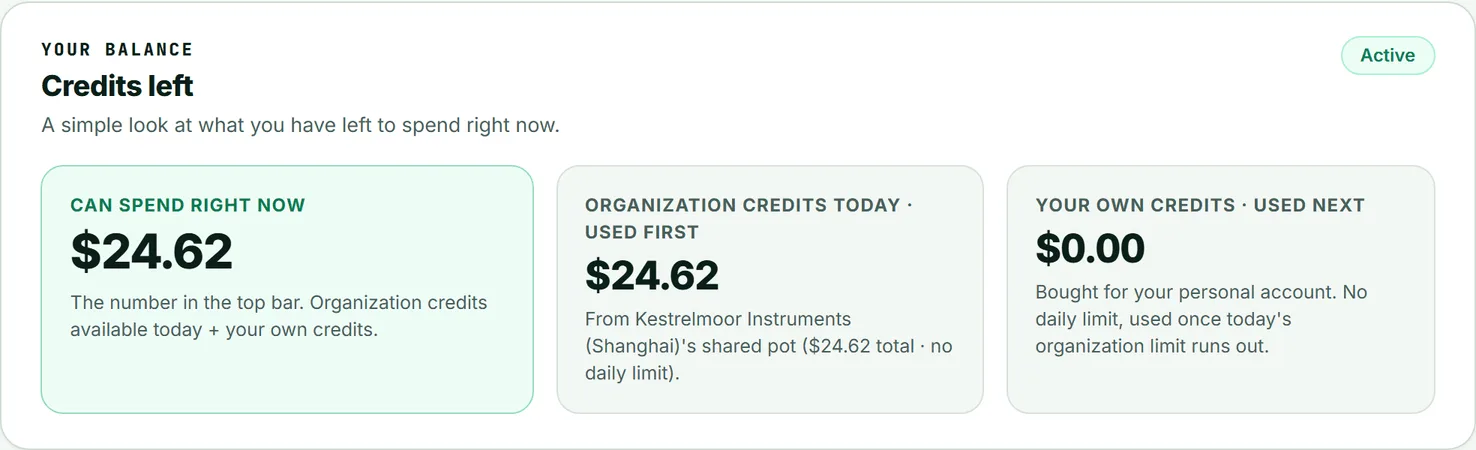
The figure in the header, in Settings under Available now, and on the Buy credits page under Can spend right now is one sum: what you may still take from the organization’s credits today, plus all of your own credits.
Say the shared pot holds $500, your daily limit is $20 and you have taken $5 of it today. You also own $30. You can spend $45: $15 from the shared pot plus your $30. Tomorrow, with nothing else changed, it reads $50.
Daily limits
Your role decides how much of the organization’s credits you may draw.
| Role | On the organization’s credits |
|---|---|
| Admin | No daily limit: the whole shared balance. |
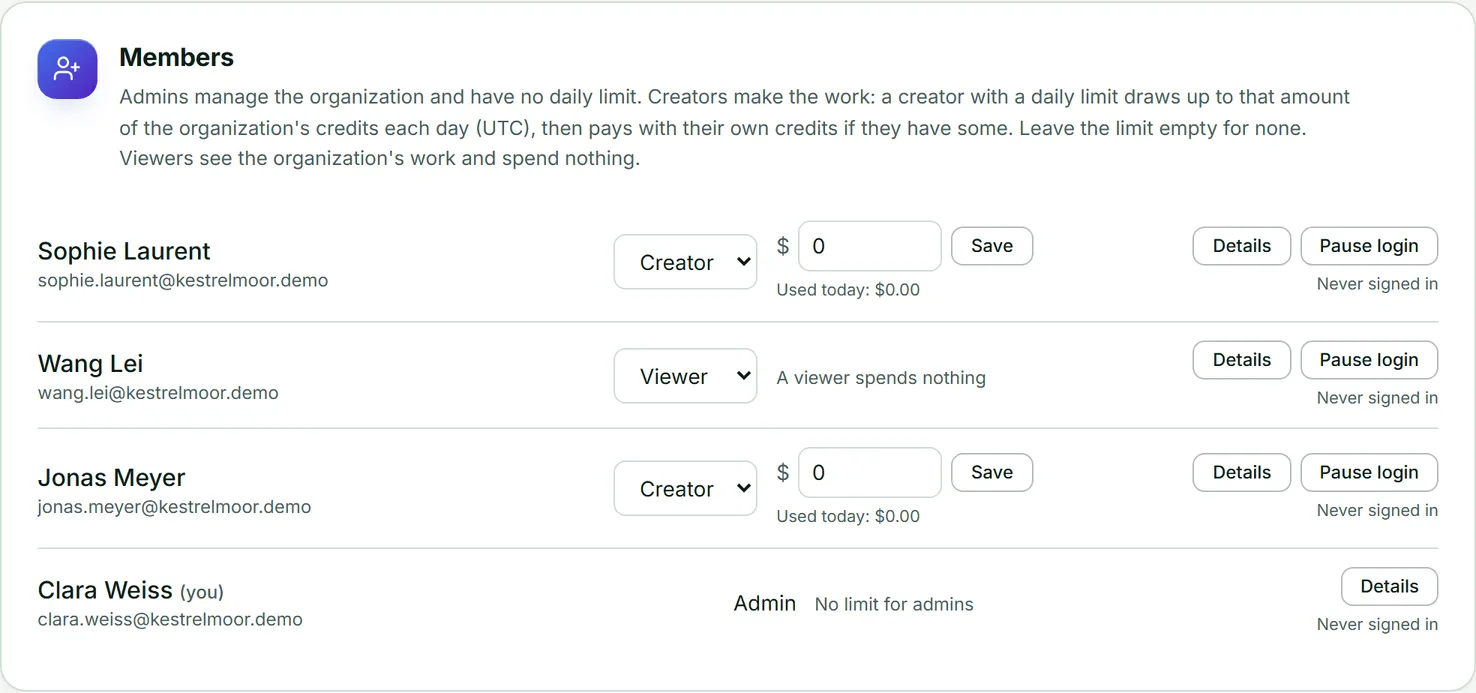
| Creator | Up to the daily limit an administrator sets. A new creator starts at $0, which means nothing from the shared pot until a limit is set. |
| Viewer | Nothing. Viewers read the organization’s work and spend no credits. |
The day runs from midnight to midnight UTC, and an unused limit does not carry over to the next day. Your own credits are never counted against it.
An administrator sets a creator’s limit on the Organization page, in the Members card: type an amount in the dollar field next to the person and click Save. The card also shows what each person has used today. Leaving the field empty removes the limit, so that person may use the whole shared balance. See Your organization.
The messages you may see
| The message starts with | What it means | What to do |
|---|---|---|
| “You are out of AI credits” | Your own balance is empty and you have no organization credits. | Buy credits on Buy credits. |
| “Your organization is out of AI credits” | The shared pot is empty and you have no credits of your own. | Ask an administrator to buy more, or buy your own. |
| “You have no allowance on your organization’s credits yet” | Your daily limit is $0. | Ask an administrator to set a limit, or buy your own credits. |
| “You have used today’s allowance of your organization’s credits” | Your daily limit is used up. | Wait for midnight UTC, buy your own credits, or ask for a higher limit. |
The Buy credits page says the same in a banner when you reach the daily limit: “You reached today’s organization limit”, with the amount.
Buy credits
Anyone can buy credits for their own account. Administrators can also buy for the organization.
- Open Credits > Buy credits.
- Under Choose who gets the credits, pick My organization (the shared pot) or Just for me (your personal account). Each shows its balance. If you are not an administrator, only your own account is open.
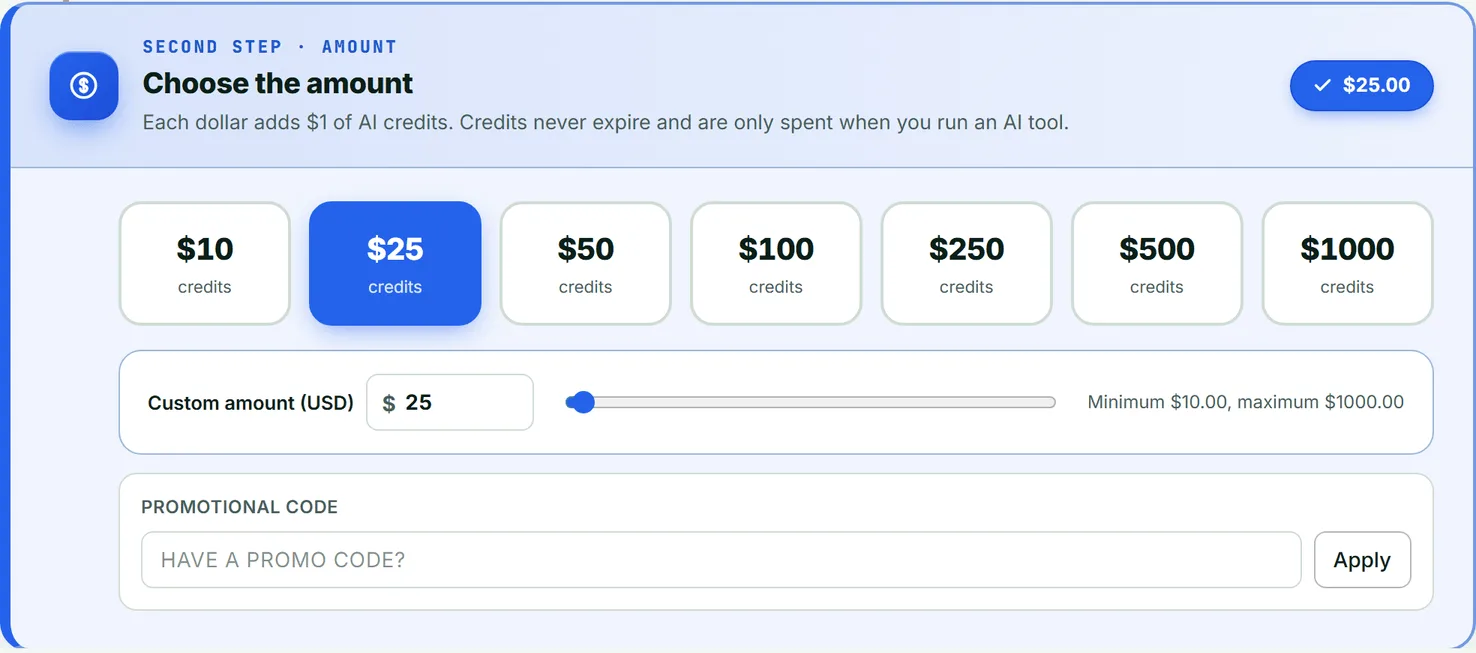
- Under Choose the amount, click a preset ($10, $25, $50, $100, $250, $500 or $1000) or type your own in Custom amount (USD). The minimum is $10 and the maximum $1000 per purchase.
- If you have a promotional code, type it in the Promotional code box and click Apply.
- Under Choose how to pay, pick Card, Alipay or WeChat Pay.
- Before your first purchase only, tick the box that says you accept the Terms of Service, including that credits are never refunded.
- Click Buy, which shows the amount, for example Buy $25.00 of credits.
| Method | Charged in | Notes |
|---|---|---|
| Card | US dollars | Visa, Mastercard and international bank cards. You type the card details in the form on the page. |
| Alipay | US dollars | You pay with your Alipay wallet. |
| WeChat Pay | Chinese yuan | Converted at the rate shown on the page ($1 = ¥7.25). You receive the exact dollar amount in credits. |
There is no fee on top. A card payment usually confirms in seconds. Alipay and WeChat Pay can take longer, and the page keeps checking.
When the page sees you are in mainland China, a notice appears above the buy button: the card payment can take up to 2 minutes there. Keep the page and the payment page open until you land back on BeyondBridge. Closing the tab, refreshing or switching networks cuts it. If you already paid, your credits and your invoice still arrive once the payment is confirmed.
If you would rather pay locally in China, the page offers a fapiao (发票): you pay in RMB and we credit your account. Write to us from the address shown on the page with the amount you want.
Promotional codes
A code never changes what you pay. It adds free credits on top of your purchase, so a larger amount lands on the balance. Codes are not case sensitive. When a code is accepted, the box turns green and shows the free credits it gives, for example “+$25.00 of free credits”. Remove takes it off again. If a code is refused, the message under the field says why: it does not exist, has expired, is reserved for another organization, or applies only from a larger amount.
The free credits appear in your credit history as a Promotional code line next to the purchase. Automatic top-up never carries a code.
After you pay
You land on the Payment page. Payment successful means the credits are on the balance. Payment received means the credits are being added, which takes a few seconds. Payment being confirmed means Alipay or WeChat Pay is still settling. Payment cancelled, Payment not completed, Payment expired and Payment failed mean nothing was charged: Try again takes you back. A confirmation by email follows each purchase, with the invoice.
Automatic top-up
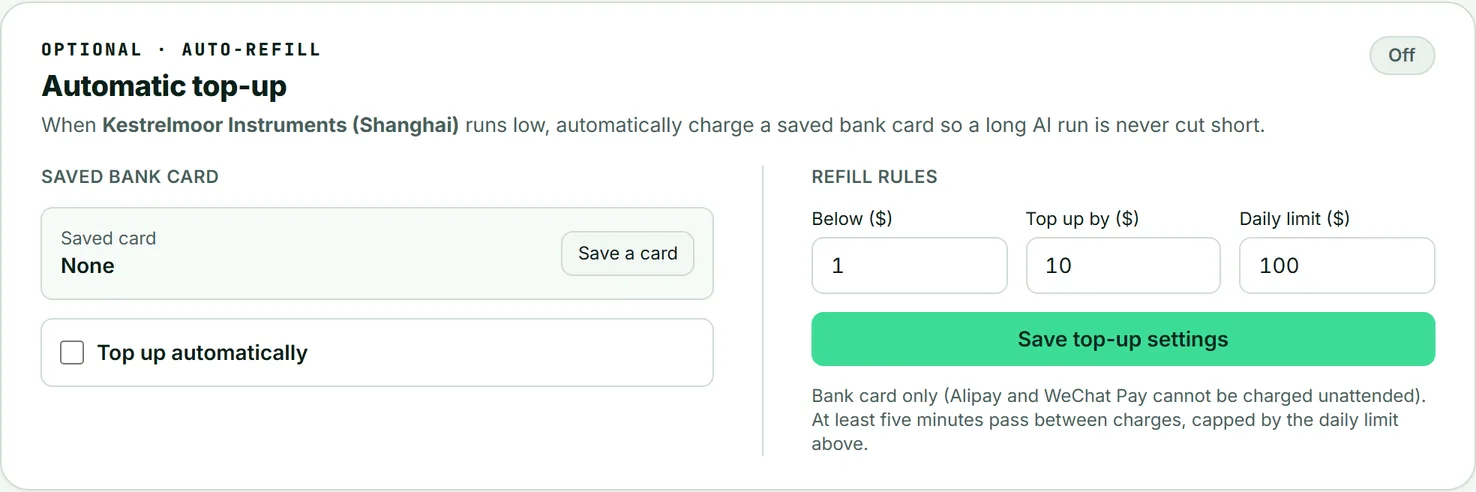
Automatic top-up charges a saved bank card when your credits run low, so a long run or a scheduled agent is never cut short. It sits at the bottom of Buy credits, in the Automatic top-up card. It follows the choice you made at the top of the page: the organization’s credits for an administrator who picked My organization, otherwise your own.
| Field | What it means | Default |
|---|---|---|
| Below ($) | Charge when the balance falls under this amount. | $1 |
| Top up by ($) | How much to buy each time, from $10 to $1,000. | $10 |
| Daily limit ($) | The most charged automatically in one day. | $100 |
Only a bank card works: Alipay and WeChat Pay cannot be charged while you are away. After a paid action, if the balance is under your threshold, the card is charged the Top up by amount. At least five minutes pass between two charges, and the day’s total never goes over the daily limit, so a runaway agent cannot keep charging your card. If a charge is declined or your bank asks for approval, a red box reads Automatic top-up is paused. with the reason. Fix the card or the limit, then click Try again in the box.
Untick Top up automatically and save to switch it off. The card stays saved. With top-up on, the low-balance email is not sent, because the balance refills itself.
Invoices
Every purchase and every automatic top-up gets an invoice. Credits > Invoices lists them with the date, the type (Credit purchase or Automatic top-up), the amount, how you paid and the status, plus links to view the invoice and download it as a PDF. A WeChat Pay invoice shows the yuan amount that was charged, with the dollar amount of credits in its description.
Administrators see a Whose invoices switch at the top: the organization or Your account. Everyone else sees their own.
Below the invoices, Credit history lists every movement on the balance, newest first, up to the last 100. Purchases and top-ups are there, each paid action appears as AI usage, and a Promotional code or Admin adjustment line explains any change you did not make yourself. The amounts have four decimals, because one call often costs a fraction of a cent.
Who the invoice is made out to
- Credits for the organization are invoiced to the organization, with the name, email and address on file. An administrator edits them on the Organization page, in the Invoices and sign-in card: Invoiced to, Invoices sent to and Billing address, then Save the invoice details. Manage billing address, next to “Invoice addressed to:” on the Credits page, opens that card. A change applies to the next invoice, and invoices already issued keep their details.
- Your own credits are invoiced to you. Set the name and address in Settings, in the Invoices section (Name on the invoice and Address). Until you do, your sign-in address is printed instead. An administrator who buys can choose, on the buy form, whether the invoice is made out to them or to the organization.
What costs credits
Anything that calls an AI model costs credits, and the price depends on the model you pick and the size of the job. There is no fixed price list. The price is shown before each run, or right after it for the few runs priced on what the model reports, and it is charged as shown.
| What | Where you see it |
|---|---|
| Questions in Ask Intelligence, with or without web search | The price of each answer. |
| Messages, images and web searches in the Playground | The price before you send. |
| Every run of an agent, scheduled, started by hand or a test | The cost on the run, in the email that follows it and in the Runs list. |
| Improving a prompt, and drafting from an agent finding | Each is its own line in the usage log. |
| Voice input | The price under the box when you stop dictating, counted by the second of speech. |
| Files you keep (attachments, generated files, Scratchpad files) | A small rent each day, charged to the organization’s credits, and a small price for each download. |
These are free: opening any page, reading your results, managing people, skills and connections, and changing settings.
What runs by itself
Most of what you spend, you spend on purpose. A few things work when nobody is signed in:
- Scheduled agents. An agent with a schedule is checked once a day and starts when it is due. Each run is billed like any other, and the cost shows on the run and in the email that follows it. Each agent has a monthly and a weekly budget: an agent that used its budget is skipped, and the others still run. To stop one, switch off its schedule. See Agents.
- Automatic top-up. It spends money, not just credits, and is limited by its daily limit and the five-minute gap.
- Daily file rent. Files you keep carry a small rent, charged once a day to the organization’s credits and shown in the usage log as File storage (daily). It is the one charge that continues on an empty balance, so delete files you no longer need.
To size it, open Usage after a full month and look at the lines nobody was sitting at a keyboard for: Agent run and File storage (daily). That total is your baseline.
Usage log
Credits > Usage lists every paid action of a month, grouped by person. Pick the month at the top: the current one or the previous one. Administrators also get a User filter, and see everyone in the organization. Everyone else sees only their own actions.
Each row shows When, Action (what ran, in plain words, such as Ask Intelligence, Model Playground or Agent run), Type, Model, Tokens and Cost, the final price charged to your credits, with four decimals. A month shows at most 5,000 calls. The usage log lists paid actions only. For every movement of the balance, including purchases, use the credit history on Invoices. Your own paid actions are also in your Log.
Who can do what
| Action | Who |
|---|---|
| See your balance, buy your own credits, see your own invoices and usage | Everyone |
| Buy credits for the organization, set up its automatic top-up | Administrators |
| See the organization’s invoices and the usage of everyone | Administrators |
| Set a creator’s daily limit | Administrators |
| Change the organization’s monthly spending cap | Our team: use Contact us |
When the organization’s shared credits fall under $5, every administrator gets an email, unless automatic top-up is on for them. If your balance changes without a purchase or a paid action, look for an Admin adjustment line in the credit history: it carries the reason, and an email tells you about it.