Connections
Connect your Outlook mailbox, choose whether Ask may send from it, and see how administrators connect company systems and grant them person by person.
Updated November 26, 2026For everyone for My connections; administrators for Organization connections
Connections are how Ask Intelligence and your agents read systems that live outside BeyondBridge. There are two kinds. My connections holds your own mailbox, which only you can use. Organization connections holds the company systems an administrator plugs in for the whole team. Both are under Connections in the left menu, and the second entry is for administrators only.
My connections
Open Connections, then My connections. The page is titled “My Connections” and holds one card, Your mailboxes. BeyondBridge connects Outlook mailboxes only.
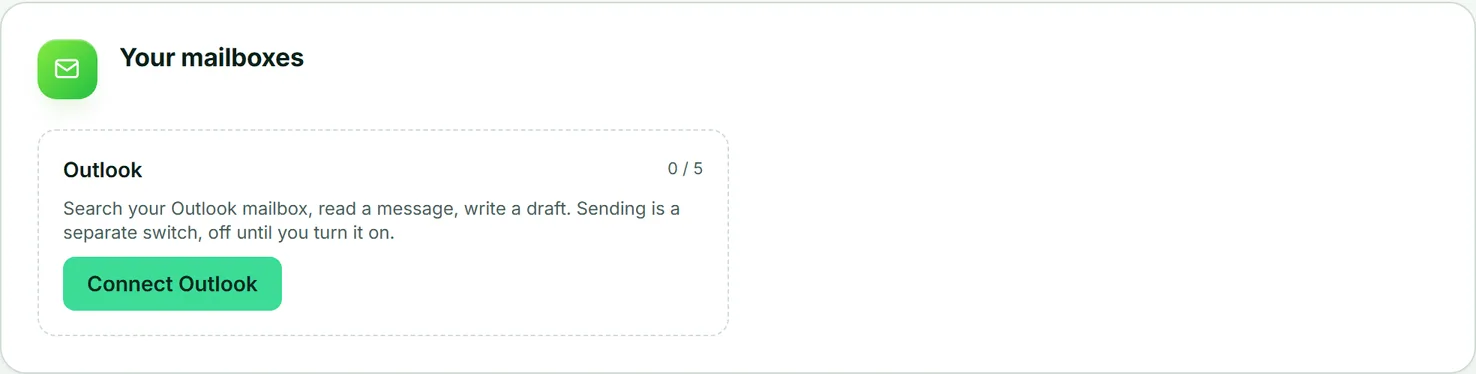
Connect an Outlook mailbox
- On the Your mailboxes card, click Connect Outlook.
- Sign in with the mailbox you want and allow access.
- You come back to My connections, which opens the mailbox on its own tab.
You can connect up to five Outlook mailboxes, a work address and a shared one, for example. The tile counts them, such as 2 / 5. Each mailbox has its own tab and its own switches. At five, the page tells you “You have reached five Outlook mailboxes, the most allowed. Disconnect one to add another.” To add another address, open the last tab and click Connect another Outlook.
What a mailbox may do
A connected mailbox shows its address, a status (Connected or Paused) and a list of switches in two groups.
What it may read has four tools:
| Tool | What it does |
|---|---|
| search_messages | Search your Outlook mailbox |
| read_message | Read one of your messages in full |
| list_folders | List your mail folders |
| list_drafts | List the drafts waiting in your mailbox |
What it may do in your name has two:
| Tool | What it does |
|---|---|
| create_draft | Write an email and leave it in your Drafts folder |
| send_draft | Send a draft to its recipients, for real |
Writing a draft is safe: the email waits in your Drafts folder and nothing leaves until you open Outlook and press Send. Sending is a separate switch, send_draft, off until you turn it on.
When you tick it, the page asks: “Allow sending? From now on, Ask and the agents you gave this mailbox may send an email to real people from your address, without asking you first. Drafts alone are the safer setting.” Confirm only if you want that. Only you can switch sending on, and each mailbox has its own switch.
To make Ask leave a mailbox alone for a while, untick Available to my Ask Intelligence. The connection stays, paused.
If a tool shows Reconnect to send or Reconnect to use it, the mailbox was connected before that permission existed. Click it and sign in again.
What was written in your mailbox
Below the card, Written in your mailbox counts the drafts and sent emails that Ask or an agent wrote for you. Click it to open the list: each line shows Draft or Sent, the mailbox address, the subject, the recipients, what wrote it and when.
Reconnect or disconnect
Reconnect signs in again to the same address. Disconnect removes one mailbox after a confirmation that names it. Ask loses access to it, and the permission is withdrawn from your Microsoft account. Your other mailboxes stay connected.
You can also give a mailbox to an agent as one of its sources when you build it. See Agents.
Organization connections
Administrators connect the company’s own systems under Connections, then Organization connections (the page is titled “Connections”, and says “Connections of” followed by your organization). Everything here is read-only: Ask and the agents make lookups and nothing is written back. Keys stay on the server: an address that carries a secret is shown masked after you connect it.
The top band counts Systems connected and, among them, those Active right now. A paused system is read by nobody.
Connect an MCP server or a REST API
The Other external systems card takes any system that exposes an MCP server or a REST API.
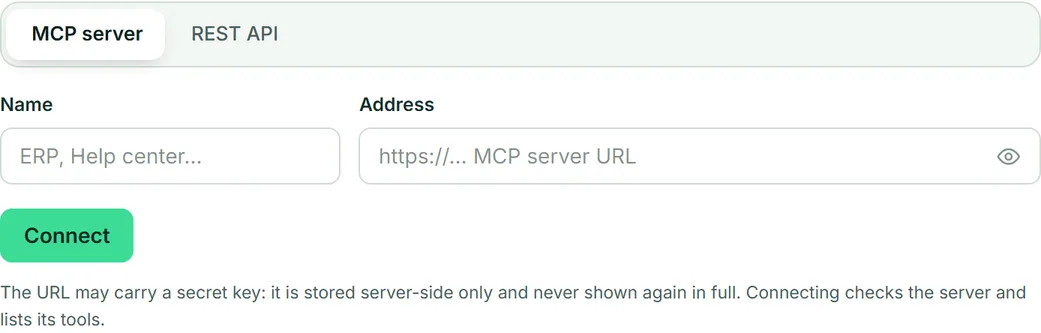
- Pick MCP server.
- Type a Name, such as “ERP”.
- Paste the server address. It must start with https.
- Click Connect.
BeyondBridge asks the server for its tools before saving anything. An address that does not answer is never stored. Each tool is sorted as a read tool or a write tool. Only read tools can be switched on, and write tools stay listed and off.
For a REST API:
- Pick REST API.
- Type a Name and the API’s base address.
- If the API needs a key, fill in Authentication header (for example Authorization) and Header value. Give both or neither.
- In What the API holds and its main endpoints, describe the data and its main paths, for example “GET /customers lists the customers”.
- Click Connect.
The API only receives lookups (GET requests), the base address must use https, and addresses on private networks are refused. Nothing is saved if the API refuses the credentials.
Each connected system has an Active switch, Check connection and Disconnect. Take a minute over the description of a REST API: Ask and the agents read it to know which paths to call.
The Zoho card
The Zoho card connects a Zoho account through an MCP server you create in Zoho. Paste its URL under Zoho MCP server URL and click Connect. The card links to How to create your Zoho MCP server. The Zoho card is built for sales data, and Ask reads it only where sales data is in reach. BeyondBridge has no sales pages, so to give Ask and your agents a Zoho server, add it under Other external systems instead.
Who can use an organization connection
Administrators read every connection. Everyone else reads one only once it is granted to them, person by person. A new connection starts with administrators only, and that includes people who join later.
- Open Organization in the left menu and click Details on the person’s line.
- Go to the Connected data card.
- Switch on each system they may read. A paused one is marked “paused”.
- Click Save changes.
An administrator’s own page has no switches here: it lists every system, since administrators read them all. Turning off Active on a system pauses it for everyone, administrators included, and the grants come back when you turn it on again. If you disconnect a system, its grants go with it.
A member who has not been granted a system does not get its data in Ask or in agents they build. When someone asks why, check that the system is Active and switched on for them.
The check after you sign in
Each time you sign in, BeyondBridge tests in the background every connection that is switched on: your own mailboxes and the organization’s systems you read. Your first page opens at once and the check never holds you up.
The answer comes as a notification in the bottom right corner:
| Answer | What it shows |
|---|---|
| Everything works | “Every connection works”, then it leaves on its own after a few seconds |
| Something needs attention | “Some connections need attention”, with one line per connection and what went wrong |
| The check failed | “The connection check could not be completed”: your connections were not tested |
For one of your own mailboxes, Reconnect opens My connections in a new tab on that mailbox. Sign in there, then click Check again in the notification. For a company system, the line reads “Ask an administrator to reconnect it.” and names your administrators. An administrator sees Reconnect there instead.
Details opens the full check on the “Your connections” page, which tests everything again as it opens. A paused connection is not tested.
What it costs
Connecting a mailbox or a system is free. When Ask or an agent reads one, the reading is part of the answer or the run, and the price shown before the run covers it.