Scratchpad
A private drawer on every page for your notes, your files and your recordings. Nobody else ever sees it.
Updated November 26, 2026For everyone
The Scratchpad is a drawer for your own notes. It slides in from the right on every page, so you can jot down an idea, keep a file at hand or record a call without leaving what you are doing. Your notes live in sheets, and nobody else ever sees them: not your colleagues, not your administrators.
Open the Scratchpad
Click the notes button in the header, whose tooltip reads Scratchpad (Alt+N), or press Alt+N on any page. Press Alt+N again, or click the X, to close it. Escape closes it too while you are working in it.
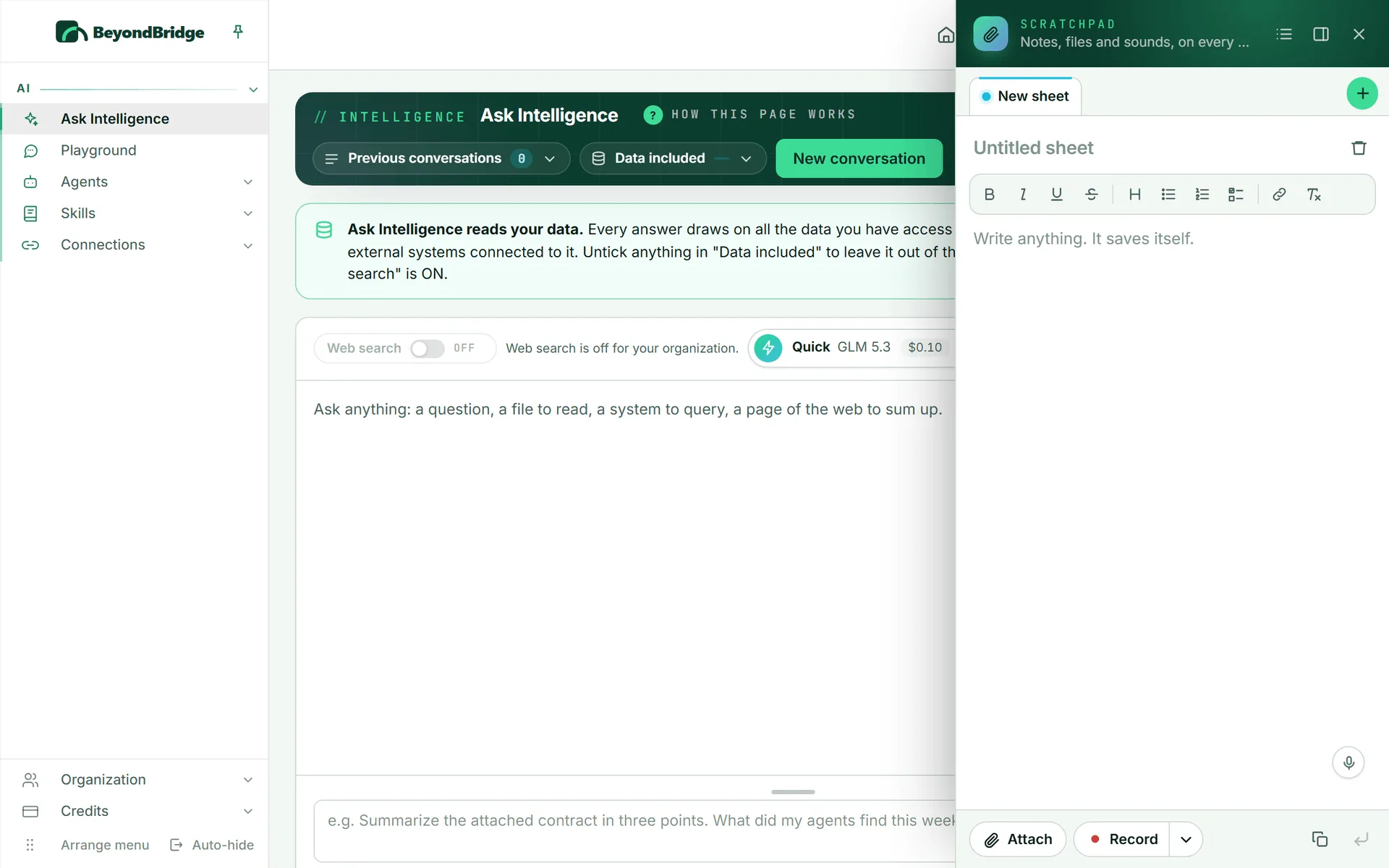
- Dock it. By default the drawer slides over the page. Click Keep it beside the page at the top and the page makes room for it, so you can read an answer and take notes side by side. Click the same button, now Let it slide over the page, to undo it. Docking needs a window at least 1,024 pixels wide.
- Resize it. Drag its left edge. It is between 320 and 760 pixels wide.
Sheets
A sheet holds a text, plus the files and recordings you add to it. Your sheets sit as tabs along the top of the drawer.
- New sheet: the plus button at the end of the tabs. You can also just start typing: the first sheet is created as you write.
- Name it: type in the title field above the text, up to 80 characters. A sheet without a title is named after its first line.
- All sheets: the list button at the top shows every sheet with its date and its number of files, and a search box to find one.
- Reorder them: drag a tab to another place.
- Delete one: the bin next to the title. The confirmation reminds you that the sheet goes with its text, its files and its recordings, and that this cannot be undone.
You can keep up to 100 sheets, each holding up to 200,000 characters.
Write and format
Write anything in the sheet. It saves itself about a second after you stop typing, again when you click elsewhere, and again when you close the tab. The foot of the drawer says so as it happens.
The bar above the text formats it: Bold, Italic, Underline, Strikethrough, Heading, Bulleted list, Numbered list, Checklist, Link and Clear formatting. The usual keys work too: Ctrl+B, Ctrl+I, Ctrl+U and Ctrl+K (Cmd on a Mac). In a check list, click an item’s box to tick it.
You can also dictate. The sheet has the microphone every multi-line text box has, and your words appear at the cursor as you speak. See Voice input.
Take a note out of the drawer
Two buttons at the foot of the drawer send the text elsewhere. Both take the part you selected in the sheet, or the whole sheet when nothing is selected.
- Copy the text of the sheet puts it on your clipboard, formatting included.
- Insert into the field you were writing in writes it where your cursor was on the page, such as the Ask Intelligence message box or a field of a form. Click in that field first, then click the button.
Files and recordings
Attach files
Click Attach to pick files, drop them on the drawer, or paste them. They appear under the text, under Files and recordings, with a progress bar while they upload. Each file can be as large as your organization allows for an upload.
On each file:
- a picture shows a preview, and a click opens it full size; a sound or a clip plays in the drawer
- double-click its name to rename it
- Download saves it to your computer
- Delete removes it
Record a sound
Record records straight into the sheet. The small arrow next to it picks what to record:
| Choice | What it records |
|---|---|
| Microphone | Your voice, or any sound in the room. |
| Sound of a tab | A call, a video or a webinar playing in another tab. |
| Microphone and a tab | Both sides of a call, mixed in one recording. |
The first time, your browser asks for the microphone. For a tab, it asks you to pick the tab: tick Share tab audio in that window, or the recording has no sound.
While it records, a bar shows the running time and the sound level, with Pause, Stop and keep and Throw away. A recording you keep is added to the sheet’s files and plays there. Leaving the page ends a recording, and your browser warns you first. If a recording cannot be stored, it is saved to your computer instead, so it is never lost.
Make call notes
A recording of a call becomes its notes. Click Call notes on the recording: it is transcribed with its speakers, then a text model writes a summary, the decisions, the next steps, the objections and a follow-up email, with the transcript below them. It runs in the background and reports in Activity (see Log and Activity), so you can go on working. The notes stay on the recording, with its length and its price. Make the call notes again starts over.
Under the notes, Copy the notes puts them on your clipboard and Put them in the sheet writes them at the end of the sheet’s text. A recording can be up to two hours long.
Private to you
A sheet is yours alone. There is no sharing, no link and no view for administrators: a colleague who opens the Scratchpad sees their own sheets, never yours. To give a text to your team, copy it where they will read it, such as an email.
What it costs
Writing in the Scratchpad is free. Files and recordings are stored files: they are billed a small daily storage rent from your organization’s credits, and downloading a file is billed as a download. Viewing a picture or playing a recording in the drawer is not billed. A dictation is billed like any other dictation. Call notes are billed for the recording and for the notes, and their price shows on the notes. See Balance and billing.
Who can use it
Everyone signed in has a Scratchpad, Viewers included: since nobody else reads it, a Viewer writes in their own like everybody else. Administrators decide it per person in the rights grid, on the Scratchpad row. Without View, the notes button is not in the header. With View but not the right to change, the drawer opens read only. See Roles and rights.
Troubleshooting
| What you see | What to do |
|---|---|
| You have 100 sheets, the most the Scratchpad keeps. Delete one to start another. | Delete a sheet you no longer need. |
| A sheet holds up to 200,000 characters. Start another sheet for the rest. | Move part of the text to a new sheet. |
| That file is too large, with the limit | The file is over your organization’s upload limit. Make it smaller. |
| No sound came with that share. Pick a tab and tick “Share tab audio”. | Start again, pick a tab and tick Share tab audio in the browser’s window. |
| The browser was not allowed to listen. | Allow the microphone (or the share) from the browser’s address bar and click Record again. |
| Click in a field of the page first | Insert needs a field to write into: click in it, then click the button again. |
| No notes button in the header | Your rights do not include the Scratchpad. Ask an administrator. |
More in Troubleshooting.