Agents
An agent watches the systems you connect on a schedule and reports what matters, in findings you read in the app or by email.
Updated November 27, 2026For everyone; administrators for organization agents
An agent is a standing instruction that runs by itself. You tell it what to look at and what counts as news, it reads the systems you point it to on a schedule, and it reports what it found. Nothing is reported just to fill a page: an agent that finds nothing says so. Open Agents in the menu to build and follow yours.
BeyondBridge has no ready-made agents. Every agent here is built from scratch, in plain words, by you or by an administrator.
The four tabs
| Tab | What it is for | Who sees it |
|---|---|---|
| Personal | Your own agents: the ones you edit, test, switch on and off. They spend your own budget. | Everyone |
| Organization | Agents shared by the whole organization. | Administrators |
| Agents Command Room | What is running, what runs next, and every past run with what it found. | Everyone |
| Catalog | The ready-made agents. It is empty for now, because BeyondBridge has none. | Everyone |
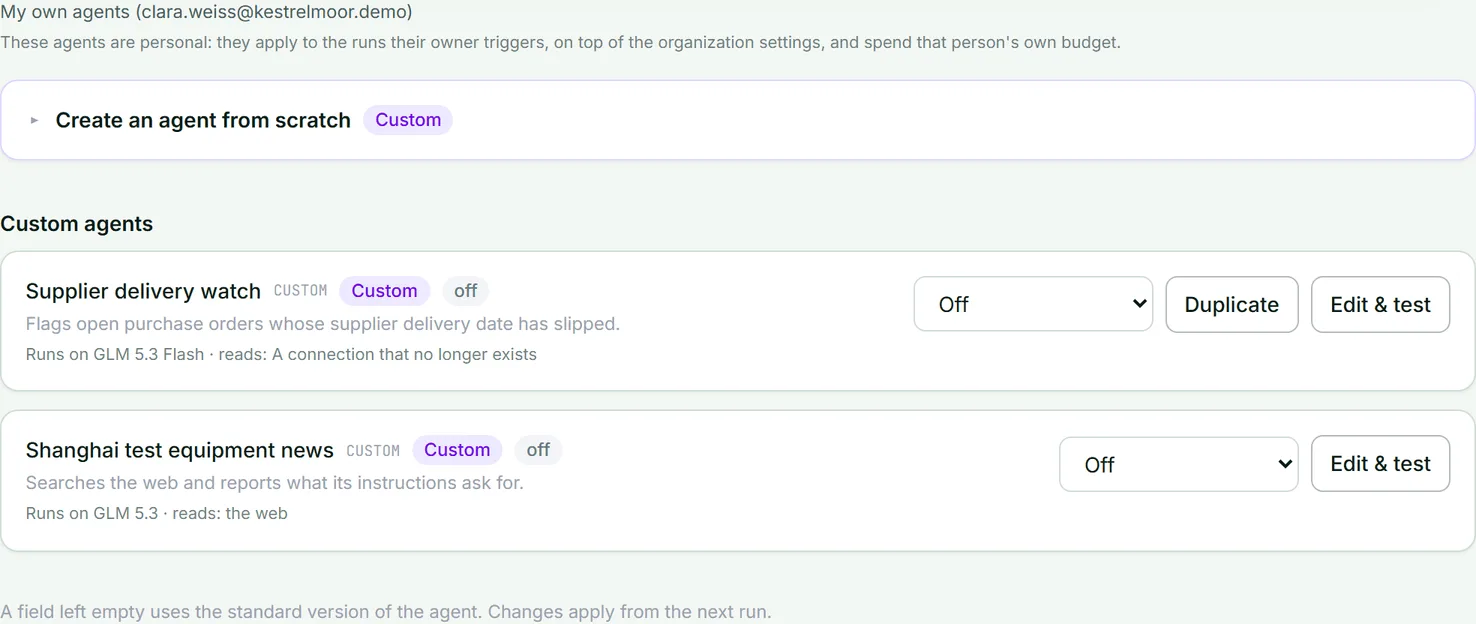
You need the Editor role or above. Viewers can read agents but not build them (see Roles and rights).
An agent needs no connection to start: with Web search on, it can work from the web alone, for example to follow the news of your market. To give it your own data, connect your systems (see Connections). An agent only reads what you can see yourself, through read-only tools: nothing is ever written back.
- Open Agents, then the Personal tab.
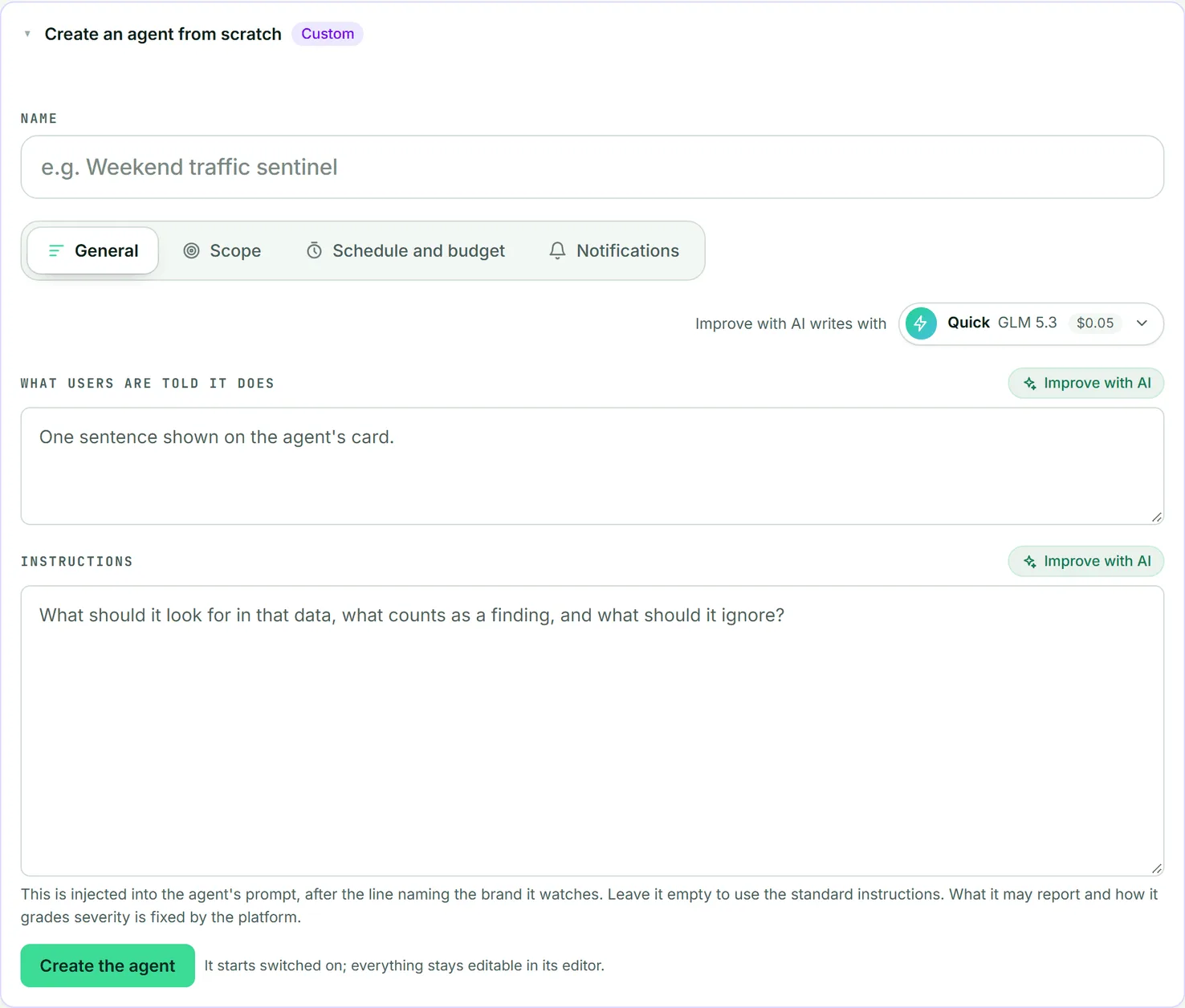
- Unfold Create an agent from scratch.
- Type a Name above the tabs.
- On the General tab, fill in What users are told it does with one sentence for its card, then Instructions. Say what to look for and what to ignore, in at least 20 characters. Improve with AI, next to each box, writes it from the agent’s name or rewrites what you typed.
- On the Scope tab, tick what it reads under Data it reads, if anything is offered there.
- Pick a model under AI, and decide whether Web search is on. An agent that reads no data needs Web search on.
- On Schedule and budget, set how often it runs and its budgets.
- On Notifications, choose who gets an email.
- Click Create the agent.
Write good instructions
The instructions decide what the agent notices. Be concrete about what counts and what does not. For example: “Read the open purchase orders in the supplier portal. Flag any order whose promised delivery date has moved back by more than three days. Ignore orders under 500 USD. Name the supplier, the order and the new date.”
A few rules stay fixed whatever you write. The agent reports only what its data supports, prefers a few meaningful findings to many small ones, and grades each finding critical, warning or info. Finding nothing is a valid result.
What an agent can read
The picker on the Scope tab offers:
- Connected systems: the systems your organization connected, such as a business system reached through an MCP server or a REST API. You see the ones an administrator granted you, and administrators see all of them. Each run, the agent’s model reads the system through its read-only tools and then writes its findings. Those reads are billed with the run and shown in its cost.
- Your own accounts: your own Outlook mailbox, when you connected it on My Connections. Only you can give your own account to an agent, and nobody else ever sees it offered.
- The web: turn Web search on and each run also searches the web, up to three searches, for what your data cannot hold: competitors’ news, market facts, prices, regulations. Each search is billed with the run and shown in its cost. Figures about your organization still come only from your own data.
If nothing is connected yet, Data it reads is empty: tick nothing and turn Web search on, and the agent works from the web alone. Every run is new, so it always reaches the model and is billed. Each run reads your organization’s own data once: there are no brands to pick in BeyondBridge.
The Scope tab of an agent that exists
Once an agent exists, its Scope tab also lists what it may use, each set to Off, Reads or Reads and changes: the connections it can reach, and the modules and features it works in, such as Ask Intelligence, Playground, Scratchpad and Log. Add a module or feature gives it more. You can only add what you can use yourself, and changing the Scope tab never gives an agent more than you have.
Test an agent before you rely on it
Open Edit & test. Under Test run, click Run on real data. The agent runs as written, unsaved edits included. The findings show on that page only: nothing is posted anywhere. It is a real model call, so it costs what a run costs. Read what comes back and tighten the instructions until the findings are the ones you would act on.
Schedule and budget
On Schedule and budget:
- Runs every (hours): the shortest gap allowed between two runs. A new agent runs every 24 hours unless you set another interval. Due runs are picked up by a daily check, so in practice an agent runs at most once a day.
- Monthly budget (USD) and Weekly budget (USD): the most the agent may spend, per calendar month and over any seven days. Whichever is reached first stops it, and it starts again when the period clears. The tab shows what it spent This month and over the Last seven days.
Switch an agent off with the On and Off menu on its card: an agent that is off never runs on its schedule. Only agents that are on are scheduled.
Who gets the results
On Notifications, Email the results to offers The agent’s owner, These people only (addresses you list) or Nobody. Email content is Summary and link or Full results, which puts the findings in the email. Both include a link to the run. Only scheduled runs send an email. When you run an agent yourself, the results show on screen.
Runs that found no data or nothing new stay quiet.
Follow your agents: the Agents Command Room
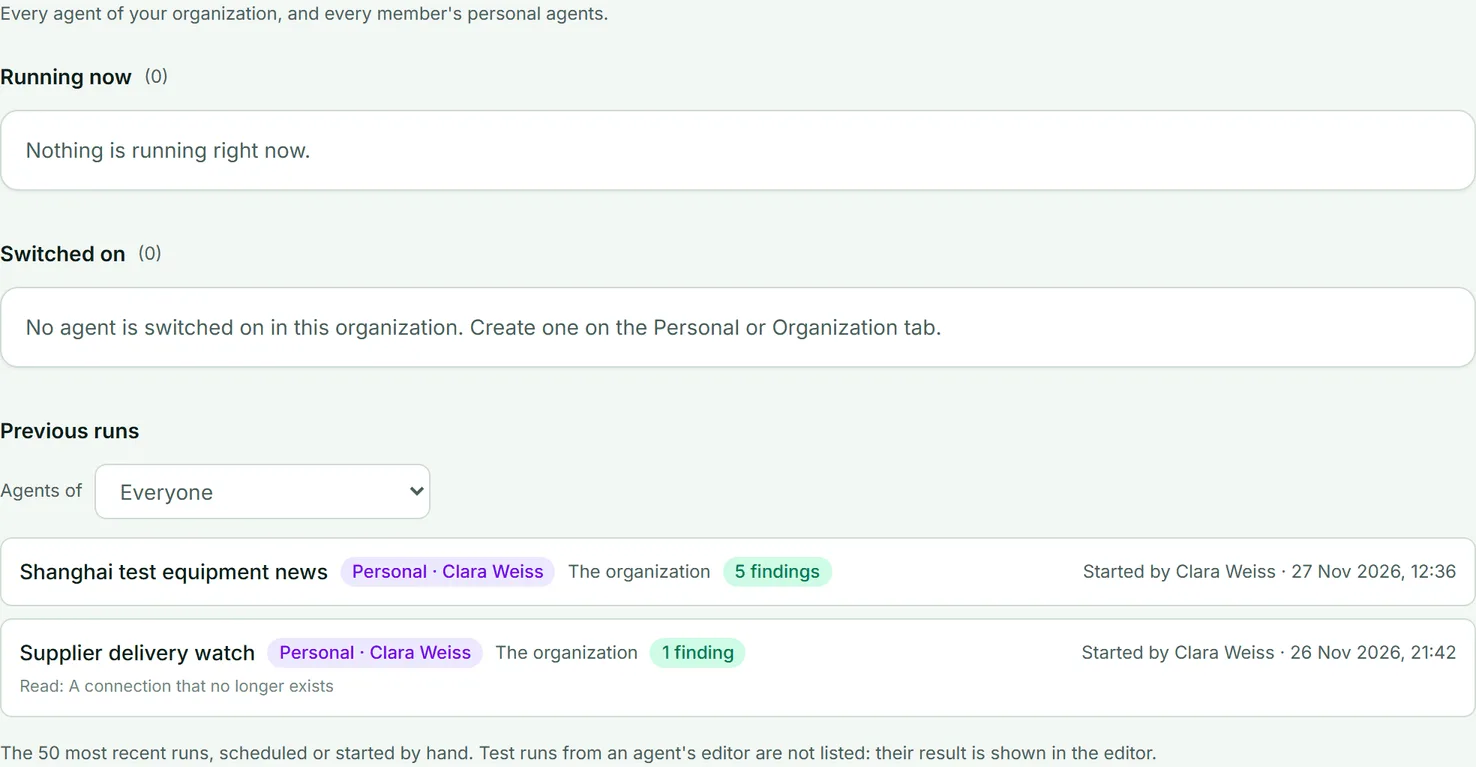
Open Agents, then Agents Command Room. Three sections sit one under the other:
- Running now: the runs going on, scheduled or started by hand. The page refreshes by itself while something runs.
- Switched on: each agent that runs on its own, with its interval, what it reads, Last run: and Next run:. Run now on a card starts a real, billed run at once. When it ends, the card reads Done. with the run’s cost.
- Previous runs: the 50 most recent runs, newest first. Each row names the agent, shows an outcome (the number of findings, nothing changed, no data to read or failed), who started it and when, and what it read.
An administrator sees every agent of the organization and every member’s personal agents. Everyone else sees their own.
| Outcome | What happened | Cost |
|---|---|---|
| A number of findings | The agent read its data, called the model and reported. Zero findings is a valid result. | Billed |
| nothing changed | The data was the same as at the last run, so the model call was skipped. | Free, except reads of a connected system |
| no data to read | There was nothing to read yet, so the run ended before the model. | Free, except reads of a connected system |
| failed | The run stopped. The reason is shown when you open it. | Free when it stopped before the model call |
What a run costs
Creating an agent is free. A run that reaches the model is billed as AI usage to the agent’s owner, and the cost is printed on the run. It depends on the model and on how much the agent reads, so open a few runs of an agent to see what it typically costs, then size its budgets from that. A short run on a low-price model costs a fraction of a cent. Pick the model under AI on the Scope tab (see Choosing a model); the price is shown beside it. Agent runs appear in your history (see Log and activity), and the balance they draw from is explained in Balance and billing.
Organization agents
Administrators have an Organization tab. It works like the Personal tab, with a Configure menu on top:
- Organization: agents every member uses. They run on the organization’s budget, which is the shared balance.
- User: a member’s own agents, managed on their behalf.
Click Create an agent from scratch and fill in the same form. Members then see the organization’s agents on their Personal tab, under Your organization’s agents. View details shows one in full. Add to my agents makes a copy that is theirs to change, run and schedule, billed to them. The organization’s agent stays as it is.
Your audio briefing
The Personal tab opens on Audio briefing: a short spoken summary of what your agents found, made on your schedule and published to a private podcast only you can follow. Switch on Make my audio briefing, choose Daily or Weekly, pick a Voice and a Voice model, and set a Monthly budget. The price beside a voice model is what a two minute briefing costs to voice. A day with nothing new is skipped, free, and a briefing that would go over the budget is skipped too. Make one now makes one on demand.
Delete an agent
Open Edit & test and click Delete this agent, then confirm. Its settings and instructions go.