What's new and support
Follow what changes, send us a bug report or a question, and find the Help center.
Updated November 27, 2026For everyone
Four things help you stay informed and get help: the What’s new page, the Help center, the Report a bug form and the Contact us form. All four are links in the footer of every page, and each opens in a new tab, so the page you were working on stays open behind it. Anyone who can sign in can use them, whatever their role, and none of them costs credits.

Help center
The Help center link in the footer opens these articles on the BeyondBridge website. They follow the app’s menu, from your first question to your invoices. The same link sits at the foot of the emails the app sends you. Start with Troubleshooting when something does not work.
What’s new
What’s new lists the changes made to the app, newest first, in plain language. A change appears there once it has shipped, not before.
Open it from the What’s new link in the footer, or from Settings > Weekly digest > See what’s new.
Entries are grouped by month, and each one has a title, a short explanation and a tag:
| Tag | Meaning |
|---|---|
| New | A feature that did not exist before. |
| Improved | Something that already existed now works better. |
| Fixed | A problem that has been corrected. |
The entries are written in English. The page around them, its title and tags included, follows your interface language. If your organization offers more than one interface language, a Language picker at the top lets you switch. It changes the language of the whole app in this browser, and it only offers the languages your organization has switched on.
The weekly digest
Every Monday, if something changed during the past week, you get an email that sums it up, in your interface language. On a week without changes, nothing is sent. The same card in Settings also has a switch for Email me when a new AI model is added.
To stop the digest, use any of these:
- In the app, go to Settings > Weekly digest and switch off Send me the weekly digest of what’s new. The page confirms with “Unsubscribed. No more weekly digest.”
- In the email, click the unsubscribe link at the bottom.
- In your mail app, use its own unsubscribe button next to the sender’s name.
To get it back, switch it on again in Settings: the page answers “Subscribed. The next digest arrives on Monday.”
Report a bug
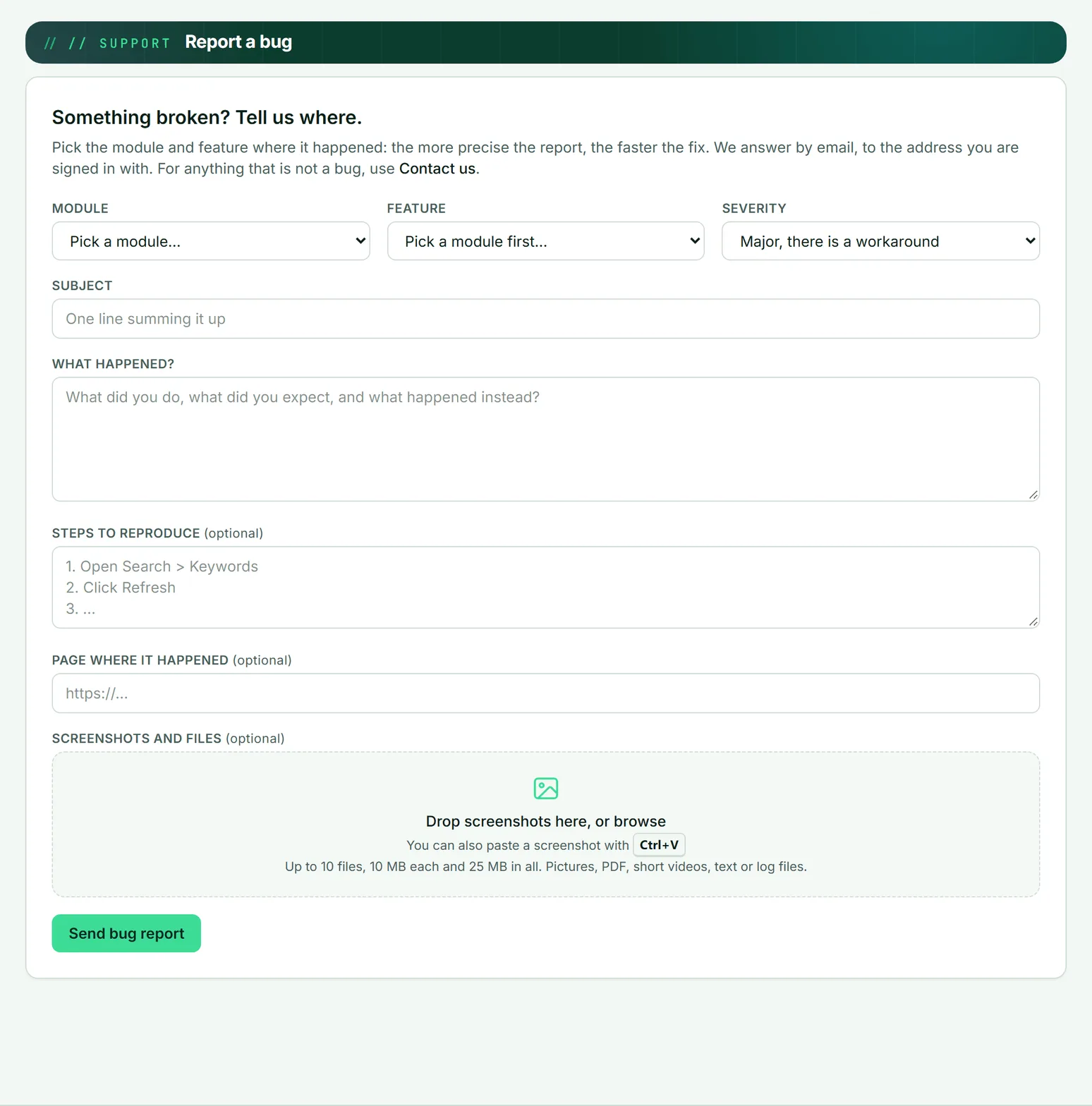
Use Report a bug when something is broken. It asks where the problem is and how serious it is, so we can start looking instead of writing back with questions.
- Pick the Module where it happened: Ask Intelligence, Playground, Agents, Skills, Connections, Credits, Organization or Account & sign-in. For anything else, pick Something else and name the page in the subject.
- Pick the Feature. The list follows the module. Choose General / the whole module if it is not about one feature, or Other… to type its name.
- Set the Severity.
- Write a one-line Subject.
- Under What happened?, say what you did and what you expected, then what happened instead.
- Add Steps to reproduce, if you can (optional).
- Check Page where it happened (optional). It is filled in with the page you came from.
- Add Screenshots and files (optional).
- Click Send bug report.
The page then says “Thank you, your report is on its way.” and shows the address the answer goes to. Report another bug gives you a fresh form.
Screenshots and files
A screenshot often says more than a paragraph. Drag files onto the box that says Drop screenshots here, or browse, click it to pick files, or paste a screenshot with Ctrl+V. You can attach up to 10 files, each up to 10 MB and 25 MB in all: pictures, PDF, short videos, and text or log files. A file that does not fit is refused on the spot, with the reason under the box.
What gets sent
The report goes to our support mailbox with what you typed, your sign-in address, your role, your organization’s name and the browser line your browser sends with every request, which tells us which browser and system you use. There is no ticket number: the answer comes by email, to the address you sign in with, and you can reply to it to continue.
If the form says “The support mailbox is not reachable right now. Please try again later.”, your report was not sent. Your text and your files are still in the form, so wait a few minutes and send it again.
A good report says what you expected as well as what went wrong, keeps to one bug, and copies any message from the screen word for word.
Contact us
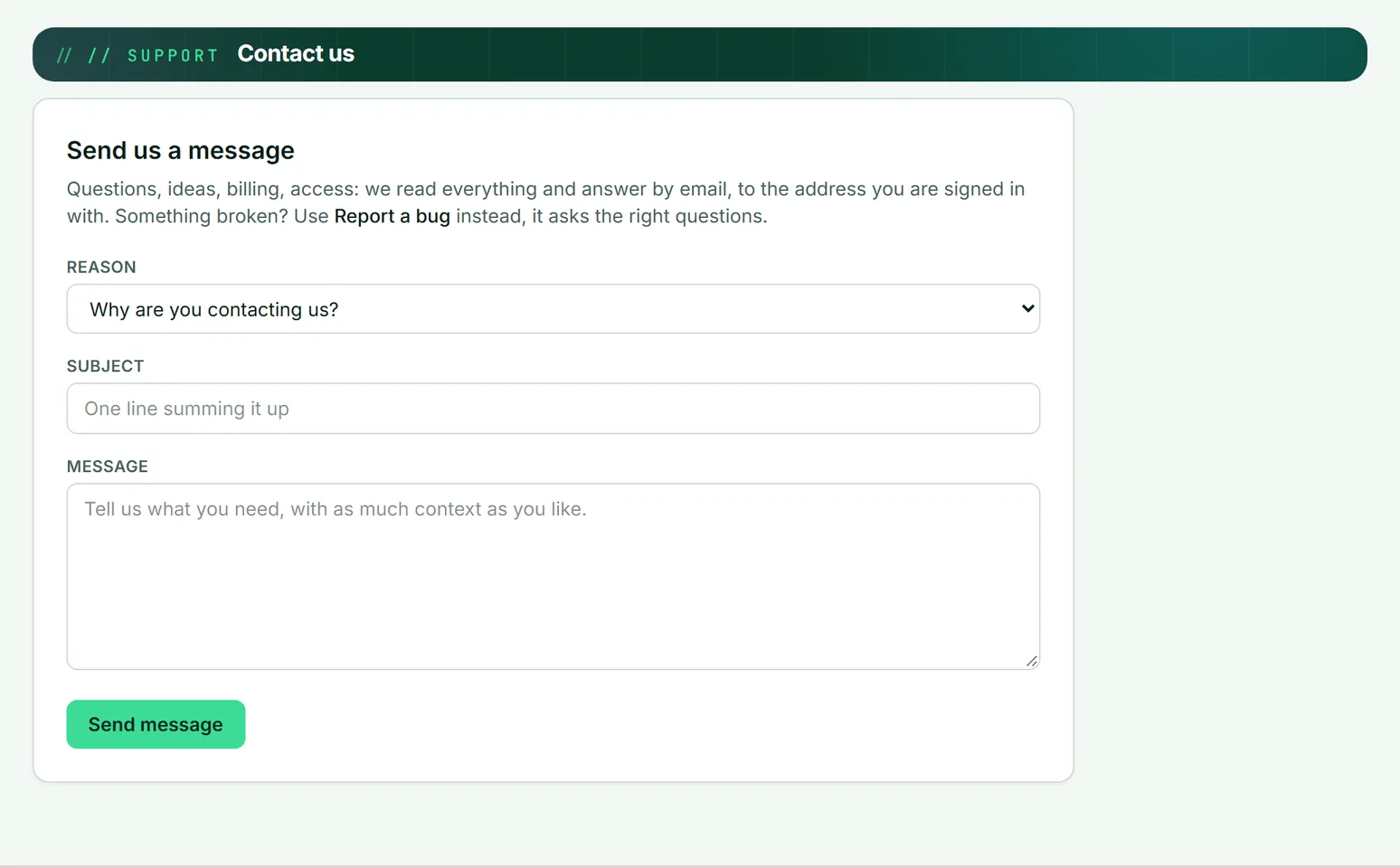
Use Contact us for everything that is not broken: a question, an idea, billing, access.
- Pick a Reason: Question about a feature, Help getting started, Feature request or idea, Billing & credits, Account & access, A data or report looks wrong, Partnership or sales, General feedback or Something else. The reason goes at the start of the subject line we read, so pick the closest one.
- Write a one-line Subject.
- Write your Message.
- Click Send message.
The page then says “Thank you, your message is on its way.” and shows where the answer will go.
Some questions get a faster answer inside your organization, because administrators decide much of what you see and spend:
| Your question | Who can answer |
|---|---|
| A page is missing from your menu, or a role is too narrow | Your administrator. See Roles and rights. |
| You need a daily limit on the organization’s credits | Your administrator. See Balance and billing. |
| You cannot sign in because your login was paused | Your administrator. See Your organization. |
| An invoice or a payment looks wrong, or the monthly spending cap needs a change | Us, through Contact us. |
| Another interface language | Your administrator, in the Languages card of the Organization page. |
| A model your organization does not offer | Us, through Contact us. |
If you cannot sign in at all, the two forms are not available, because they need a signed-in account. Use Forgot password? on the sign-in page, or ask your administrator. See Troubleshooting. To ask for an account for your company, use Request access on the sign-in page.