Roles and rights
Three roles decide what people may do. Administrators open a person's page to switch modules off and to set rights that differ from their role.
Updated November 26, 2026For administrators
What a person can open and do in BeyondBridge is decided in two layers, and both must say yes: their role, and the modules that are switched on for them. An administrator sets both. The role is chosen on the team page, and everything finer is on the person’s own page.
The three roles
| Role | What it means |
|---|---|
| Admin | Runs the organization: invites people, sets daily limits, pauses logins, connects company systems and opens each person’s page. Has no daily limit on the shared credits |
| Creator | Makes the work with Ask Intelligence, the Playground, agents and skills, within a daily limit on the shared credits |
| Viewer | Sees the organization’s work and spends nothing |
Change a role on the team page, in the list on the person’s line. See Your organization. You cannot change your own role.
BeyondBridge has these three roles only. You cannot create or edit a role, and the page that once held roles sends an administrator back to Ask Intelligence. For a person who needs something different, use their own page, below.
Note: The team page calls the middle role Creator. On a person’s own page, the same role is listed as Editor.
Open a person’s page
- Open Organization in the left menu.
- On the person’s line, click Details.
The page opens with a band naming the person: “Login active” or “Login deactivated”, their address, their role and the organization. Back to the organization returns to the team, and Deactivate login closes their login (Reactivate login opens it again). You do not see a deactivate button on your own page.
A left rail lists the sections: Name and role, Modules, Rights, Connected data, Credits, Activity and Sign-in. One Save changes button at the bottom saves every card at once. It turns amber as soon as something is unsaved.
Name and role
Who this person is holds the first and last name, the role, the organization (read-only), the sign-in address (the person changes it in their own settings) and their preferred language, which is the language of every email they receive. Pick another role in the Role list and click Save changes.
Modules
The Modules card lists the modules of the menu this person works in, each with a switch and a counter such as 5/5: Ask Intelligence, Playground, Agents, Skills and Connections.
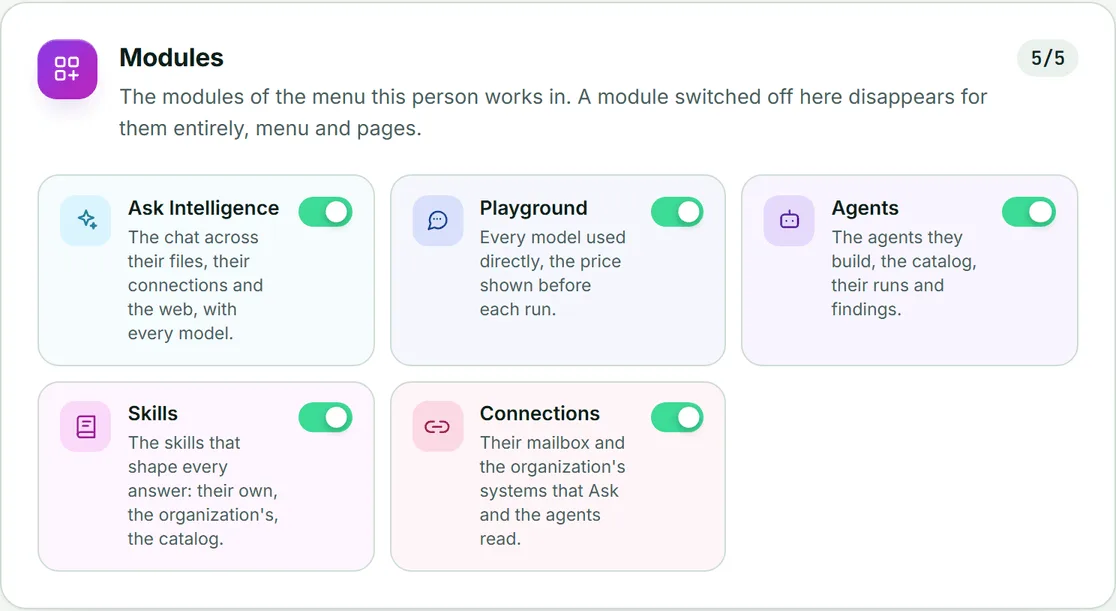
Rights, module by module
The Rights, module by module card says what the person may do inside each module they can reach: View, Create, Update and Delete.
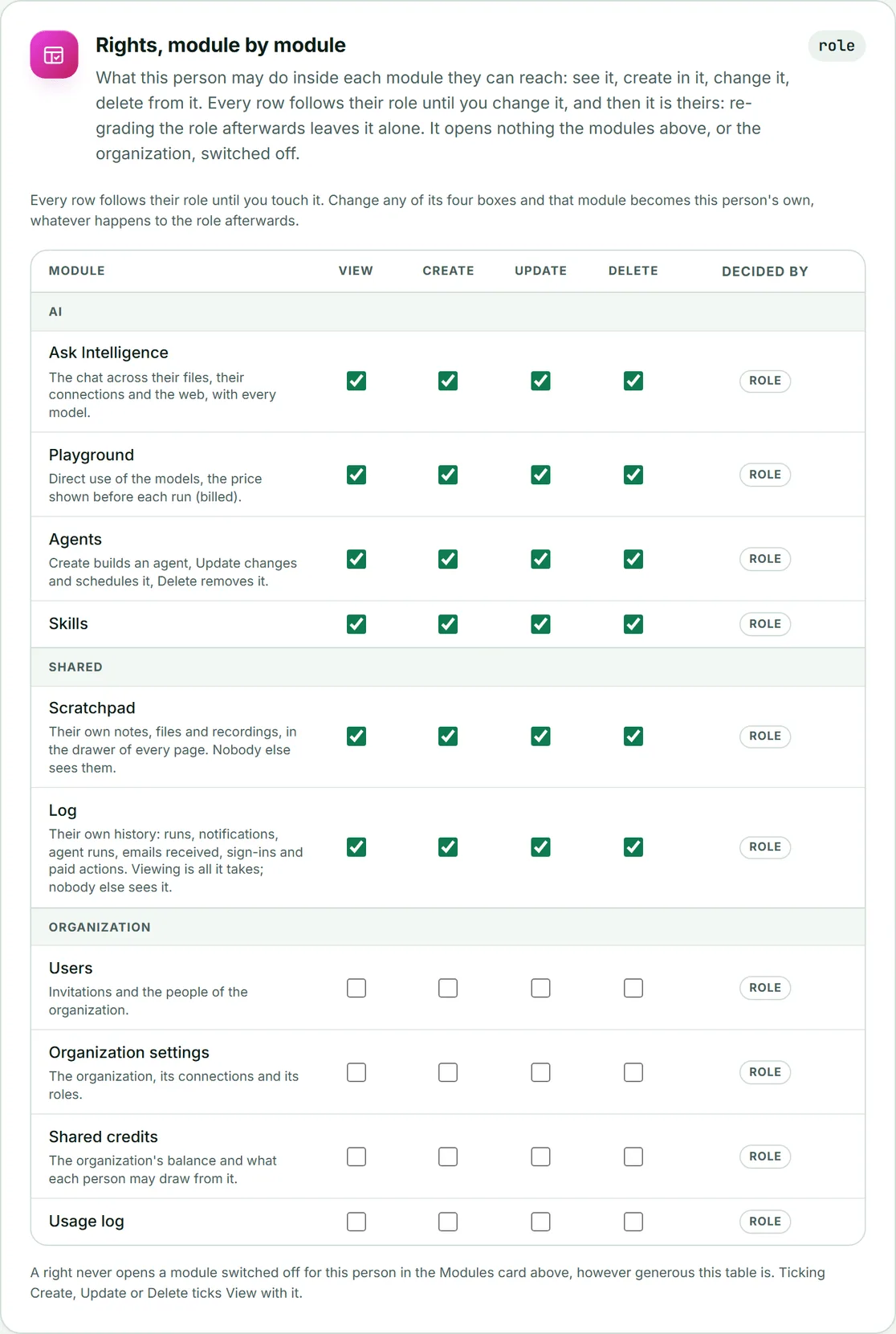
Ticking Create, Update or Delete ticks View with it. A right never opens a module that is switched off for the person: such a row carries the tag Module off above.
The rows are in three groups:
| Group | Row | What it covers |
|---|---|---|
| AI | Ask Intelligence | The chat across their files, their connections and the web, with every model |
| AI | Playground | Direct use of the models, the price shown before each run (billed) |
| AI | Agents | Create builds an agent, Update changes and schedules it, Delete removes it |
| AI | Skills | Skills |
| Shared | Scratchpad | Their own notes, files and recordings, in the drawer of every page. Nobody else sees them |
| Shared | Log | Their own history. Viewing is all it takes; nobody else sees it |
| Organization | Users | Invitations and the people of the organization |
| Organization | Organization settings | The organization, its connections and its roles |
| Organization | Shared credits | The organization’s balance and what each person may draw from it |
| Organization | Usage log | The organization’s usage |
On a Creator, the AI and Shared rows start fully ticked and the four Organization rows start unticked: opening the team, the settings and the shared credits is an administrator’s job unless you grant it here.
A person at Viewer level stays read-only whatever boxes are ticked, except in their own Scratchpad.
Connected data, credits, activity and sign-in
Connected data switches on, person by person, the company systems this person may read. See Connections. Credits holds the daily allowance on the shared credits, the same limit as on the team page, with the person’s own credits and what they spent. Activity shows what they worked in over the last 30 days and their latest paid actions. Sign-in lets you set a new password for them, and lists their last sign-ins and trusted browsers. See Log and activity for the person’s own view.
Good to know
- Changes take effect the moment you save, and the person sees them on their next page load.
- Changing roles and rights is free. What people then run can cost credits, shown before each run.
- You cannot change your own role, and an administrator cannot edit a super administrator.