Voice input
Click the microphone in any multi-line text box and speak: your words appear as you say them.
Updated November 26, 2026For everyone
You can talk instead of typing. Every text box with more than one line has a microphone: the Ask Intelligence message box, the Playground, the notes of your Scratchpad and the longer fields of forms. Click it, speak, and your words appear in the box as you say them. You choose the model that listens and the language you speak in Settings.
Where the microphone appears
The microphone sits in the bottom right corner of the text box. It shows when you click into the box or move your pointer over it, and stays out of the way the rest of the time. Boxes you can only read have none, and neither do single line fields such as a title or a search box.

Dictate into a text box
- Click where you want the words to go. To replace a passage, select it first.
- Click the microphone. The first time, your browser asks for permission to use the microphone: allow it.
- Two short rising notes tell you the microphone is listening. Speak. The button turns red, with a running clock, and your words appear as you say them.
- Click the button again to stop.
The text stays in the box, and a small note under it says Dictation added, with the price of that dictation. While it listens, the box is locked, so nothing you type can get mixed into the dictation. A dictation stops by itself after 5 minutes.
Changed your mind about a dictation? One Undo (Ctrl+Z, or Cmd+Z on a Mac) removes it all at once. Press Esc while the microphone is listening to cancel: the dictation stops and its text is removed. The seconds already listened to are still billed.
Set up voice input
- Click your picture or initials in the top right corner.
- Choose User Settings.
- Under Preferences in the index, click Voice input.
- Make your changes and click Save.
The next dictation uses the new settings, with no need to reload.
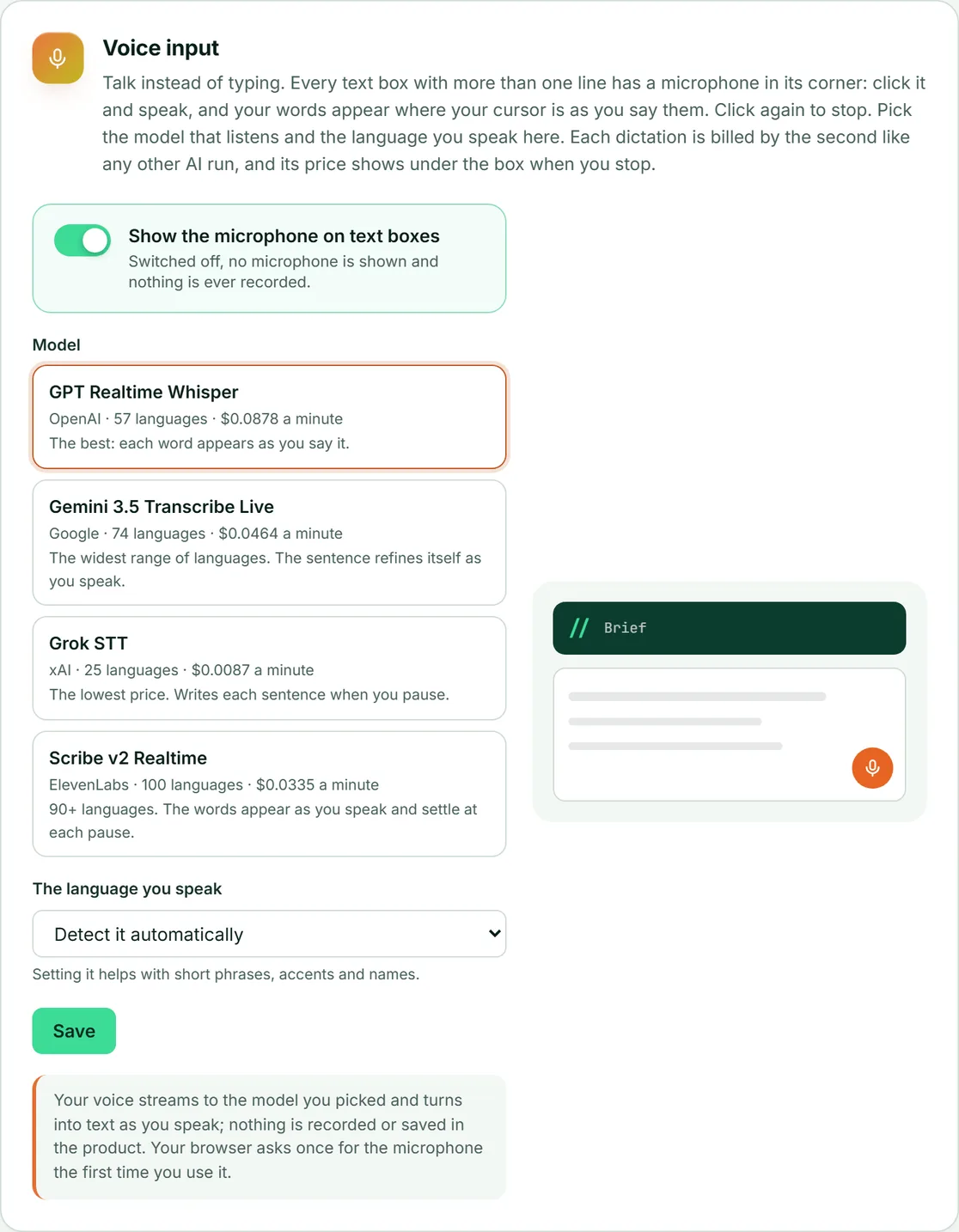
Show the microphone on text boxes is on by default. Switched off, no microphone is shown and nothing is ever recorded. Switch it back on at any time.
Model
Four models can listen to you. Each choice shows its maker, how many languages it understands and its price per minute.
| Model | Maker | What sets it apart |
|---|---|---|
| GPT Realtime Whisper | OpenAI | The best: each word appears as you say it. |
| Gemini 3.5 Transcribe Live | The widest range of languages. The sentence refines itself as you speak. | |
| Grok STT | xAI | The lowest price. It writes each sentence when you pause. |
| Scribe v2 Realtime | ElevenLabs | Over 90 languages. The words appear as you speak and settle at each pause. |
The language you speak
Leave Detect it automatically, or pick your language from the list. The list holds the languages the chosen model supports, so it changes with the model. Setting your language helps with short phrases, accents and names.
Your voice stays yours
Your voice streams to the model you picked and turns into text as you speak. Nothing is recorded or saved in BeyondBridge: what stays is the text in the box.
What it costs
Each dictation is billed by the second of speech, like any other AI run, from the same credits. Its price shows under the box when you stop, and it appears in your usage with your other runs (see Balance and billing). A cancelled dictation still pays for the seconds already listened to.
Who can do this
Each person sets voice input for themselves, on their own Settings page, and it changes nothing for colleagues.
Troubleshooting
| What you see | What to do |
|---|---|
| No microphone in a text box | Check that Show the microphone on text boxes is on in Settings. Single line fields and read-only boxes have none. |
| The microphone is blocked for this site | You refused the microphone once. Allow it from the icon in the browser’s address bar, then click the microphone again. |
| No microphone was found. Plug one in or check your system settings. | Connect a microphone, or check that your computer lets the browser use it. |
| No speech was heard. Try again a little closer to the microphone. | Speak closer to the microphone, or check which one your computer uses. |
| The connection to the model dropped. Please try again. | Click the microphone again. |
| Names or short phrases come out wrong | Set The language you speak instead of detecting it automatically, or try another model. Fix a rare name in the box once you stop. |
More in Troubleshooting.