Log and Activity
The Activity panel shows what is running and what just ended. The Log keeps your longer history: runs, agent runs, emails, sign-ins and spending.
Updated November 26, 2026For everyone
Two places keep track of what happens for you. The Activity panel in the header shows what is running now and what ended in the last day. The Log keeps the longer history of your account: jobs, agent runs, emails, sign-ins and spending. Both show your own rows only.
Do not mix either up with the Activity log card in Settings, which charts what you spent (see Account and settings).
The Activity panel
Some jobs take several minutes, such as call notes made from a recording. The Activity panel keeps track of them from any page.
The Activity button sits in the header, next to your credits.
- When nothing runs, it shows a clock and the word Activity.
- When something runs, it shows a spinner and a count, such as 2 running. On a phone, only the number shows.
- A small badge with a number means jobs finished while you were elsewhere and you have not been told yet.
Click the button to open the panel. Click anywhere else, or press Escape, to close it.
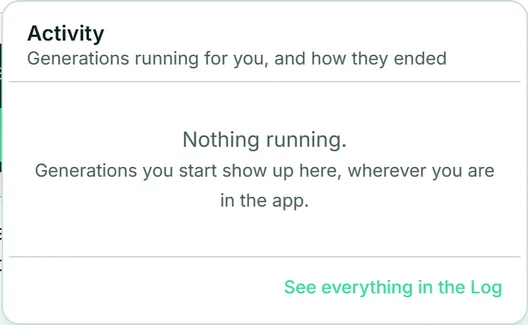
When nothing is running and nothing ended recently, the panel says “Nothing running. Generations you start show up here, wherever you are in the app.” See everything in the Log opens the Log.
Which jobs appear
The panel lists the long jobs that run in the background, such as Call notes, made from a recording in your Scratchpad, and the Connection check that tests your connections after each sign-in (see Connections). Ask Intelligence answers and agent runs do not appear in the panel. Agent runs have their own page, Runs in the Agents group, and are also listed in your Log (see Agents).
Alerts when a job ends
When a job ends, a small card appears in the bottom right corner of the screen, for example “Call notes ready”, with the job’s name. A finished job’s card shows how long it took and an Open button, then goes away on its own after about 12 seconds. A failed job’s card shows the error and waits for you to close it.
You hear about each job once, not every time you change pages. If you are already on the page where the job belongs, no card appears: the result is in front of you. If a job ended while your browser was closed, the card appears the next time you open the app.
Coming back to a pile of them, you get five cards at most, for the five newest jobs. When more are waiting, one last card closes the stack: While you were away, with the number of other notifications and a More button that opens the Log, where every one of them is listed under Runs and notifications.
The list is kept on our side, not in your browser tab. Start a job, go to another page, reload or even close the browser, and the job is still in the panel when you look. If a job stops getting news for 15 minutes, the panel marks it as failed with an “Interrupted” message: open its page from the row and start it again.
The Log
Open the account menu at the top right and click Log. The page opens with Your history above its title. You can also reach it from See everything in the Log in the Activity panel, or from the More button on the While you were away card.
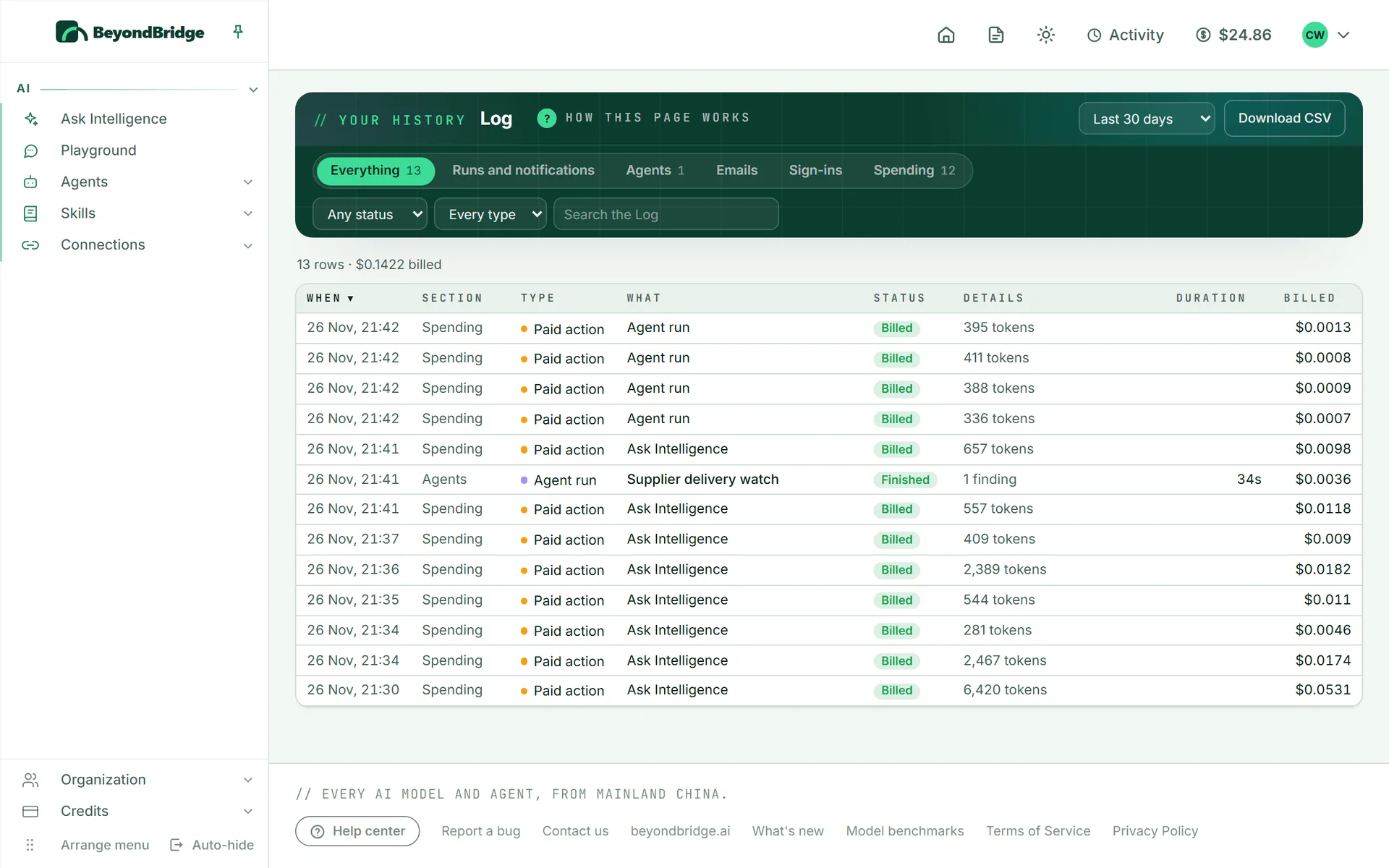
The tabs under the page header pick what the table shows. Each carries the number of rows it holds for the period.
| Section | What it lists |
|---|---|
| Everything | The five sections below in one table. |
| Runs and notifications | Every job the Activity panel told you about, and what happened on its own while you were away. Rows you cleared from the panel are still here. |
| Agents | The runs of your own agents, and the runs you started yourself with Run now. |
| Emails | The emails the app sent to your address: sign-in codes, digests, alerts and the rest. |
| Sign-ins | Each Signed in, Sign-in refused, Signed out and Password reset asked of your login. |
| Spending | Every paid action billed to you, at the price you were billed. |
Read the table
Each row is one event, in eight columns: When, Section, Type, What, Status, Details, Duration and Billed.
- When is written the way your date settings ask for.
- Type reads Agent run, Email, Sign-in or Paid action for those rows, and carries the job’s type from the Activity panel for a run.
- Details holds the result or the error of a run, what an agent run found, why an email did not go out, the browser, system, place and address of a sign-in, or the tokens a paid action used on a model.
- Billed is what a paid action, or a billed agent run, cost you.
The status reads differently in each section:
| Section | Status |
|---|---|
| Runs, agents | Finished, Failed or Running |
| Emails | Sent or Not sent |
| Sign-ins | Succeeded or Refused |
| Spending | Billed |
A line above the table sums up what the filters keep. Click a column heading to sort by that column, and click it again to reverse the order.
Narrow it down
- Period, at the top right: Today, Last 7 days, Last 30 days (the default), Last 90 days or Last 12 months.
- Status: Any status, Succeeded, Failed or Running. Succeeded keeps every row that went well, from a finished run to a sent email. Failed keeps failed runs, emails that did not go out and refused sign-ins.
- Type: Every type, or one of the types present in the section.
- Search the Log: keeps the rows whose name, details, type or status hold the words you type.
The table shows 100 rows a page, with a pager under it. The address of the page keeps the period, the section, the filters, the sort and the page, so a reload or a bookmark opens the same view. The whole period loads at once, up to 1,000 rows per section. When a section holds more, the summary says so: pick a shorter period.
Download the rows
Download CSV, next to Period, saves every row the filters keep, all pages included, as a file for a spreadsheet. The values are raw so you can sort and add them up: the time in ISO format, the duration in seconds and the billed amount in US dollars.
Open a row
- A run opens the page where the job belongs.
- An agent run opens that run on the Runs page of the Agents group.
- An email unfolds its text under its row. Click the subject again to fold it.
- A sign-in or a paid action has nowhere to go: everything there is to know is on the row.
Some emails carry a way into your account: the sign-in code, the password reset and the invitation. The Log lists them with their subject and time, but never shows their text. Click one and it reads “This email carried a sign-in code or a link to your account, so its text is not kept here.” That way a session left open on a shared computer cannot be turned into your password.
Who sees your Log
Nobody else. The Log reads your own rows only, whatever the role of the person asking, administrators included. Your administrators can still see your last sign-ins on your page in the organization, which is a different screen (see Your organization).
The Log has its own row in the rights grid, Log, which every role has by default. If an administrator unticks View on it for you, Log leaves your account menu and the Activity panel loses its See everything in the Log link. See Roles and rights.
What it costs
Reading the Log costs nothing, and so does downloading it, and so does watching the Activity panel. Spending lists what your paid actions cost, one row each, at the price you were billed. The full picture of your credits is in Balance and billing.
Troubleshooting
| Problem | What to do |
|---|---|
| A job I started is not in the Log | Check the Period, set Status to Any status and Type to Every type, and clear the search box. |
| An email I received is not listed | The Log lists the emails sent to the address you sign in with. A mail sent to another address, or by a person rather than the app, is not in it. |
| An email shows no text | It carried a sign-in code or a link to your account, so its text is never kept here. |
| No alert appeared when a job ended | You were probably on that job’s page, so the result was already in front of you. Open the panel to check. |
| I do not recognize a sign-in | Change your password at once (see Account and settings) and tell your administrator. |
More in Troubleshooting.