Skills
A skill is a set of instructions the AI follows wherever you tick it: write it once, stop repeating yourself.
Updated November 26, 2026For everyone; administrators for organization skills
A skill is a set of instructions the AI follows: a method, a checklist, a house style, a list of rules. You write it once and tick where it applies. From then on it joins the AI calls there, and you stop pasting the same instructions into every question. Open Skills in the menu.
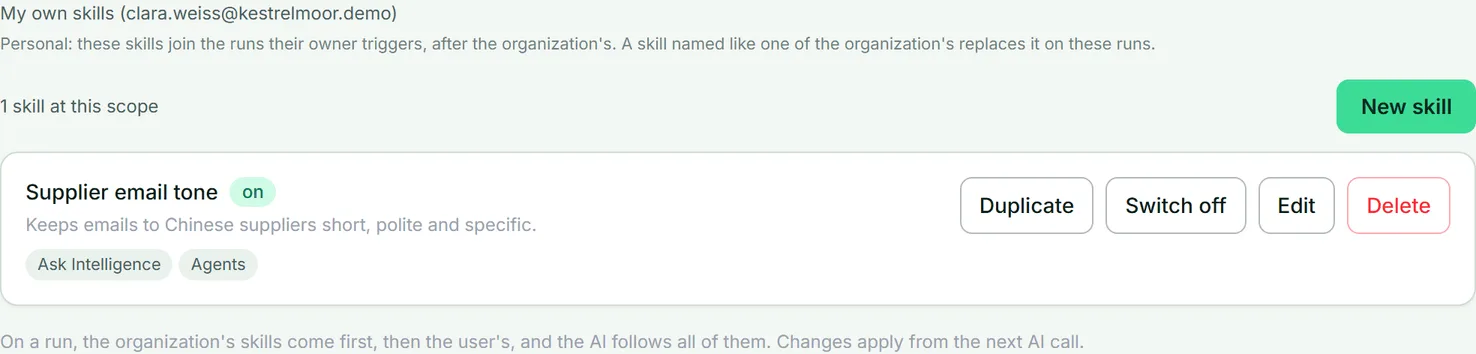
A simple example: a skill called “Supplier email tone” that says “Keep sentences short and literal, give every date with its time zone, and end with one clear question and a deadline”. Every email you draft with the AI then follows it.
The three tabs
| Tab | What it holds | Who sees it |
|---|---|---|
| Personal | Your own skills: the ones you wrote and the ones you added. The only ones you edit. | Everyone |
| Organization | The skills your administrators wrote for everyone. | Everyone; only administrators change them |
| Catalog | Ready-made skills, open to everyone. | Everyone |
Where skills apply
Each skill says where it applies, under Where it applies:
| Place | What it shapes |
|---|---|
| Ask Intelligence | Answers in Ask Intelligence. On that page you choose the skills for each conversation with Use a skill, and it offers every skill you have, whatever you ticked here. |
| Playground | Your chats with a model. The skills ticked for the Playground join every message, on top of the conversation’s own instructions. |
| Agents | The runs of your agents. The skills ticked for agents join the instructions of every run. |
A skill with nothing ticked is kept but never used by the Playground or by agents, and its card says “Applies nowhere yet: tick a surface”. A skill can also be switched off: it stays stored and stops applying until you switch it back on.
Write your own skill
You need the Editor role or above. Viewers see a note, “Your role is read-only, so you can look at these skills but not change them.”
- Open Skills. The Personal tab opens.
- Click New skill.
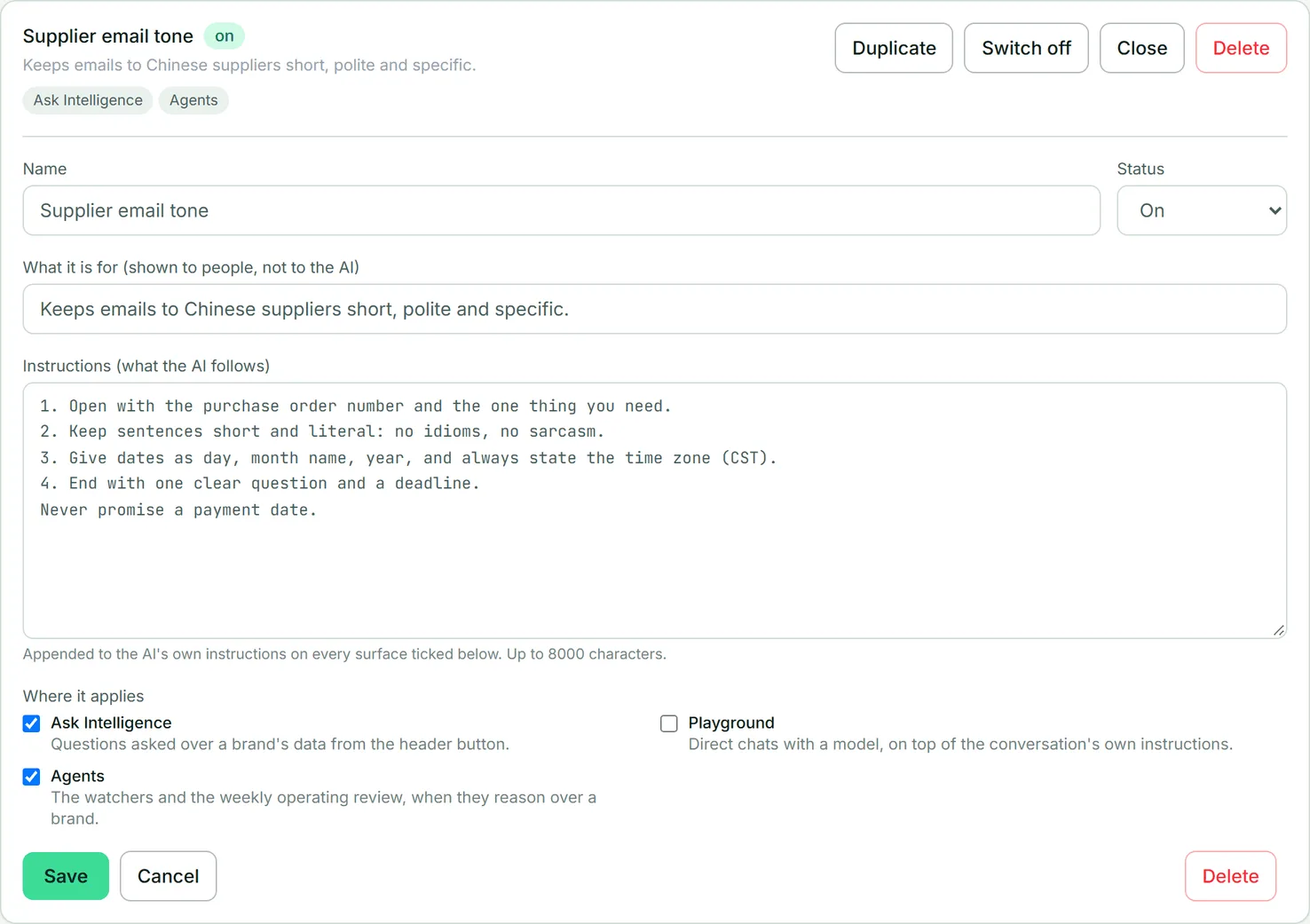
- Give it a Name (up to 80 characters) and leave Status on On.
- In What it is for (shown to people, not to the AI), write one line saying when to use it. People see it in the lists. The AI does not.
- In Instructions (what the AI follows), write the rules, up to 8,000 characters.
- Under Where it applies, tick Ask Intelligence, Playground, Agents, or any mix.
- Click Create skill.
Write good instructions
Write them the way you would brief a new colleague. Say what to do and what to avoid, and describe the layout you want. Short numbered steps or bullet rules work best:
1. Open with the purchase order number and the one thing you need.
2. Keep sentences short and literal: no idioms.
3. Give dates with the time zone.
4. End with one clear question and a deadline.
Never promise a payment date.
The AI reads them on top of the page’s own instructions, so there is no need to repeat what the page already asks for. Keep skills tight: each one adds its words, and so a few tokens, to every call it joins, billed like any AI action (see Balance and billing). A call takes at most 12 skills from each level, the oldest first.
Change, switch off or remove a skill
Every card shows its name, an on or off tag, its description and the places it applies. A card carries these buttons:
| Button | What it does |
|---|---|
| Duplicate | Makes a copy among your skills, with “(copy)” after the name, so both apply. |
| Switch off or Switch on | Stops or restarts the skill without deleting it. |
| Edit or Close | Opens the form under the card. Change what you need and click Save. |
| Delete | Asks “Delete the skill …? It stops applying everywhere at once.” Confirm to remove it for good. |
While a form has unsaved changes, Save turns amber. There is no version history: Save replaces the old text.
Organization skills
The Organization tab holds the skills your administrators wrote for everyone. They apply from each member’s next AI call, and they come before the member’s own skills.
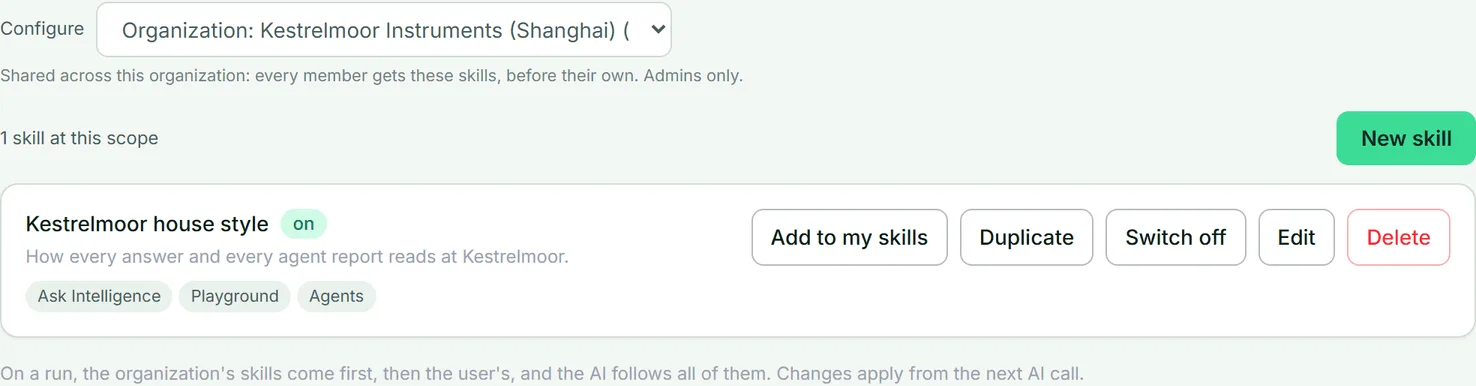
You cannot edit an organization skill, but each card has three buttons:
| Button | What it does |
|---|---|
| View details | Shows the whole skill, its instructions included. |
| Add to my skills | Copies it into your own skills under the same name. Your copy replaces the organization’s on your runs. Edit it under Personal. |
| Duplicate | Makes a separate skill of yours, named after the original followed by “(copy)”, that applies beside the original. |
Administrators
- Open Skills, then Organization.
- In Configure, choose what to manage: Organization: your organization’s name (shared with everyone in it) for the skills every member gets, or User: and a member’s name for that person’s own skills.
- Click New skill, or use the buttons on a card, as on the Personal tab.
An administrator can write, edit, switch off or delete any member’s personal skills. That helps when a newcomer joins, or when a skill no longer fits the way the team works. To give everyone the same method, write it as an organization skill and tick the places it applies. Keep shared skills short: each one reaches every member’s calls.
| Action | Viewer | Editor | Administrator |
|---|---|---|---|
| Read your own skills | Yes | Yes | Yes, and every member’s |
| Write, edit, switch off, delete personal skills | No | Your own | Your own and every member’s |
| Add or duplicate an organization skill into your own | No | Yes | Yes |
| Write, edit, switch off, delete organization skills | No | No | Yes |
The catalog
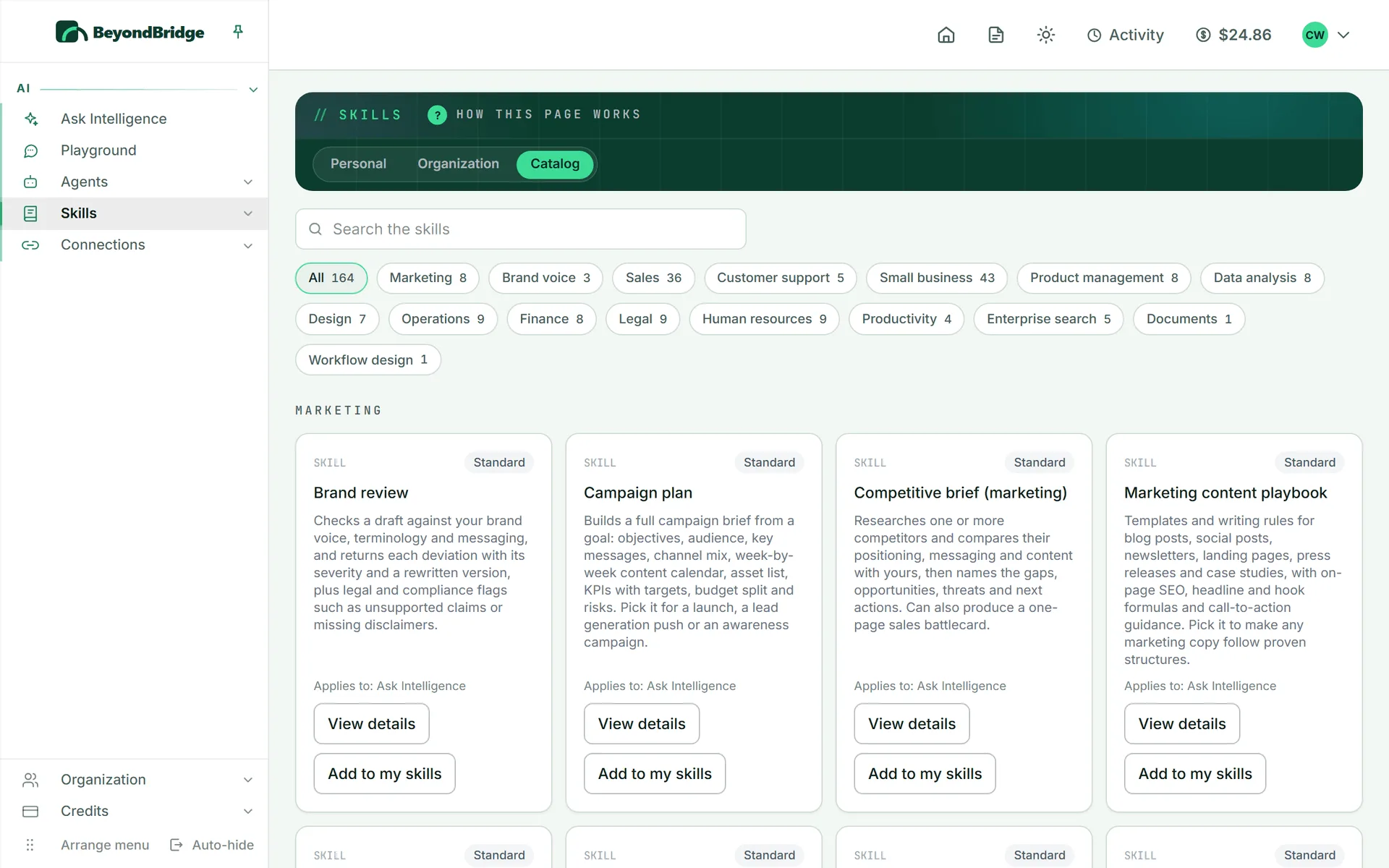
The Catalog tab holds ready-made skills for every team: more than 160 methods, from a brand review to a month-end close. The whole catalog is open to every user: you read a skill in full, then add it to your own skills, with no administrator in between.
A search box and one chip per section sit at the top: Marketing, Brand voice, Sales, Customer support, Small business, Product management, Data analysis, Design, Operations, Finance, Legal, Human resources, Productivity, Enterprise search, Documents and Workflow design. Type to narrow the cards as you type, or click a chip to show one section. All brings every section back.
When something looks wrong
- “Give the skill a name.” or “Write the instructions the skill applies.” Those two fields cannot be left empty.
- “Already in your skills.” You already have a skill with that name. Edit yours under Personal, or use Duplicate for a separate copy.
- A skill does not seem to apply. Check that it is on, that the right place is ticked, and, in Ask Intelligence, that you picked it under Use a skill.